
WonderMCA · User documentation
What the microSD card must be, the folders and files the card looks for, the rules for image names, how the lists of the setup menu and of the screenpad show the card and a USB stick, the files the card writes itself, and the messages when the card cannot be read.
← WonderMCA documentation home · Page 3 of 18
On this page — 6 sections
The microSD card holds your disk images, your settings and the CPLD update files. This page tells you how to lay it out. The card and its socket are on 02-hardware-and-installation. The image formats are on 08-hard-disks-and-floppy-disks. Every key of config.txt is on 07-configuration-reference.
Warning. Insert or remove the microSD card only with the PS/2 off. The card writes to it.
What the card must be
Format the card as FAT32. Use any computer to format it and to copy files onto it.
microSD Folders and files structure
The card looks for these files and folders in the root of the card:
| Path | Content |
|---|---|
config.txt | Text configuration. Optional. See the configuration page |
WONDERMCA.CFG | Settings saved by the setup menu. The card creates it. Do not edit it manually |
wifi.txt | The WiFi name and password. See Network |
HDD/ | Hard disk images, .img files and fixed .vhd files. An optional .chs file with the same name sets the geometry |
FLOPPY/ | Floppy images, .img files |
CDROM/ | CD-ROM images, .iso and .cue files |
ROM/ | Option ROM files. Not used in normal operation |
UPGRADE/ | CPLD update files. See Firmware and CPLD update |
You can create sub-folders inside HDD, FLOPPY and CDROM. The setup menu and the screenpad open them. A good layout keeps one folder per system or per game set, for example FLOPPY\OS2 for the OS/2 install diskettes and FLOPPY\GAMES for games.
Which image is mounted on which drive is chosen in the setup menu or on the screenpad, not in config.txt. The card keeps your choice in WONDERMCA.CFG.
Note. If you delete WONDERMCA.CFG, the card starts with its default settings and writes a new file. do not edit this file manually
Rules for image names
| Rule | Detail |
|---|---|
| Extension | Floppy and hard disk images end in .img. A hard disk image can also be a fixed .vhd. CD images end in .iso or .cue |
| Length | The name before the extension has 13 characters at most |
| Case | Upper and lower case both work |
| Size of a floppy image | 160 KB to 2880 KB. A file outside this range is not listed |
| Size of a hard disk image | 2 MB to 4096 MB. A file outside this range is not listed |
| Size of a CD image | 900 MB at most. A larger file is not listed |
Why 13 characters. The card saves the name of each mounted image in 13 characters. A longer name is cut when it is saved, and at the next start the card looks for a file that does not exist: the mount fails, the boot banner lists the image with Image not found and the red LED of the screenpad blinks. The setup menu shows Error as the size of such a file and refuses it. Rename the file to 13 characters or less. WARP3_DISK1 is fine, WARP3_INSTALL_DISK1 is not.
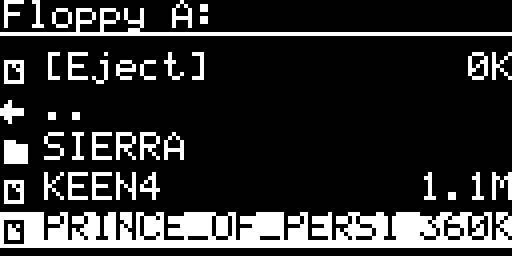
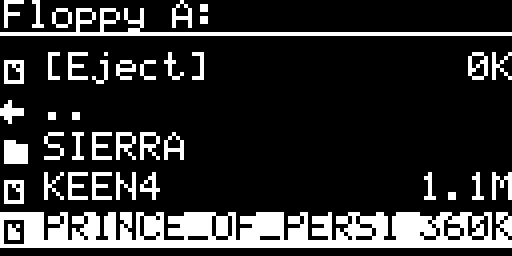
The lists are sorted by name, without regard to case, and numbers count as numbers: DISK2 comes before DISK10. Folders come first. A list holds 128 entries at most. In the setup menu a page shows 16 entries, and on the screenpad a page shows 5 rows.
The USB stick
A USB mass-storage device plugged into the USB-A port is seen as a second volume. It has its own FLOPPY and HDD folders, like the microSD card. CD images are read from the microSD card only.
When you browse images, the top of the list shows [SD] and, when a stick is plugged in, [USB]. Choose one to open its folders. The entry .. goes up one level, and at the top of a volume it returns to the choice of the volume.
![The floppy list of the setup menu, first view: the entry -=None=- and the volume [SD]](https://www.r3tr0.net/wp-content/uploads/2026/10/wm_bios_setup_disk_fdd_root.png)
![The same list with a USB stick plugged in: [SD] and [USB]](https://www.r3tr0.net/wp-content/uploads/2026/10/wm_bios_setup_disk_fdd_root_usb.png)
![The floppy picker of the screenpad, first view: [SD] and [USB]](https://www.r3tr0.net/wp-content/uploads/2026/10/wm_screenpad_mount_picker_root.png)
![The same picker with no USB stick: [SD] only](https://www.r3tr0.net/wp-content/uploads/2026/10/wm_screenpad_mount_picker_root_sd_only.png)
![The same picker with the cursor on [USB]](https://www.r3tr0.net/wp-content/uploads/2026/10/wm_screenpad_mount_picker_root_usb.png)
Inside a volume, a folder opens with Enter or ENTER. In the setup menu a folder shows in square brackets, such as [OS2]:
![The floppy list of the setup menu inside the folder OS2 of the microSD card: [..] then the images of the folder](https://www.r3tr0.net/wp-content/uploads/2026/10/wm_bios_setup_disk_fdd_folder.png)
The setup menu and the screenpad keep which volume an image came from. See Hard disks and floppy disks.
Files the card writes
| File | When |
|---|---|
WONDERMCA.CFG | At every start of the option ROM (after the setup menu), when you mount or eject an image on the screenpad, and when wmctrl saves |
HDD/<name>.img | When you create a new hard disk image |
ROM_<address>.BIN and RAM_DUMP.BIN | When you run ROM/RAM Dump on the Tools page of the setup menu |
UPGRADE/cpld_upgrade.log | At every CPLD update, rewritten each time |
When the card cannot be read
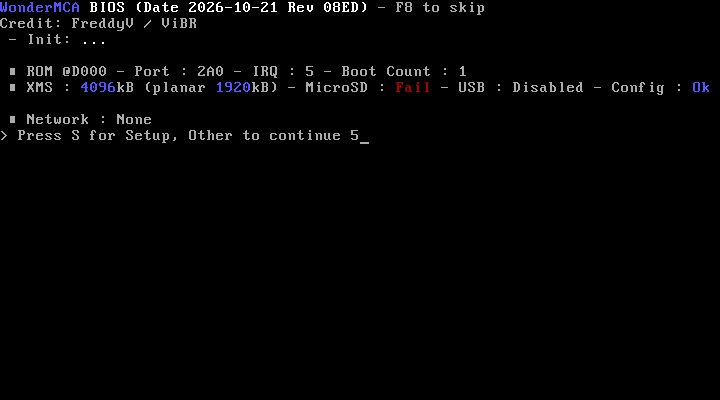
- The boot banner shows MicroSD : Fail. USB is then reported Disabled and no image is listed. See Troubleshooting.
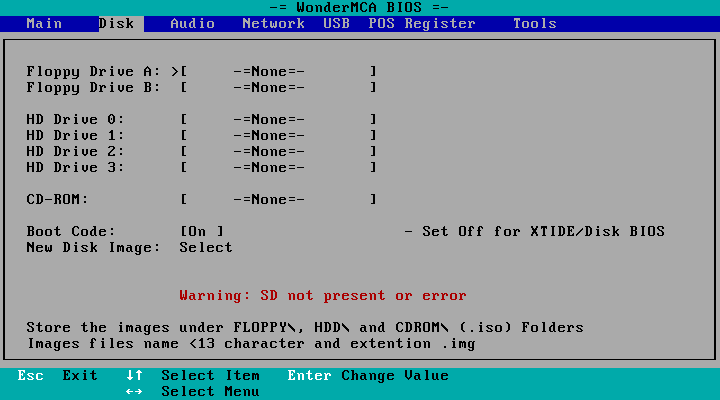
- The Disk page of the setup menu shows Warning: SD not present or error and every drive shows -=None=-.
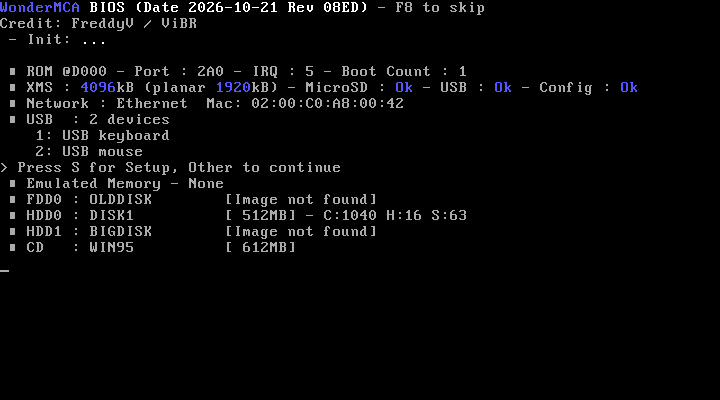
- If a configured image is missing, the boot banner lists its name with the reason in brackets: No FLOPPY folder, No HDD folder, Image not found or Bad image.
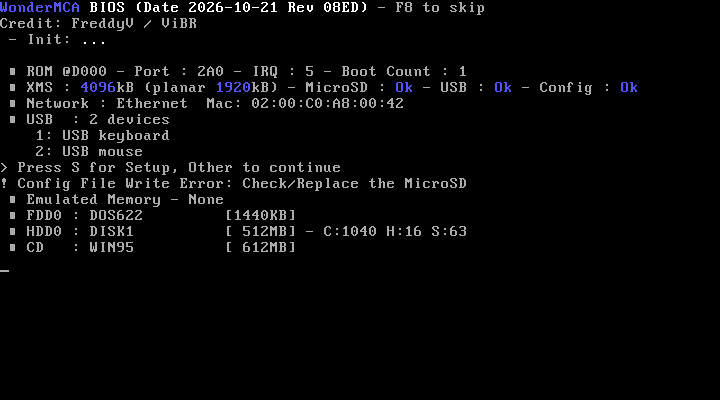
- If the settings could not be saved when you left the setup menu, the banner prints ! Config File Write Error: Check/Replace the MicroSD. The card goes on with the settings it has in memory. Check that the card is not write-protected and not full, or replace it.
← Previous
Next →
WonderMCA user documentation · Documentation home