
WonderMCA · User documentation
The WonderMCA card and its connectors, the DIP switches, the rules to follow before you fit it, how to install it in a PS/2, how to configure it with the Reference Diskette, how to check that the PS/2 sees it, the screenpad and its LEDs, and what you see at the first power-up.
← WonderMCA documentation home · Page 2 of 18
This page shows you what is on the card, how to set its switches, how to install it and what to check before you switch the computer on. The microSD card is on 03-microsd-card-preparation. Updating the firmware is on 04-firmware-and-cpld-update. The overview is on 01-overview-and-features.
Warning. Switch the PS/2 off before you insert or remove the card, a microSD card, a jumper or a switch. The Micro Channel cannot take a card while it is powered.
The card
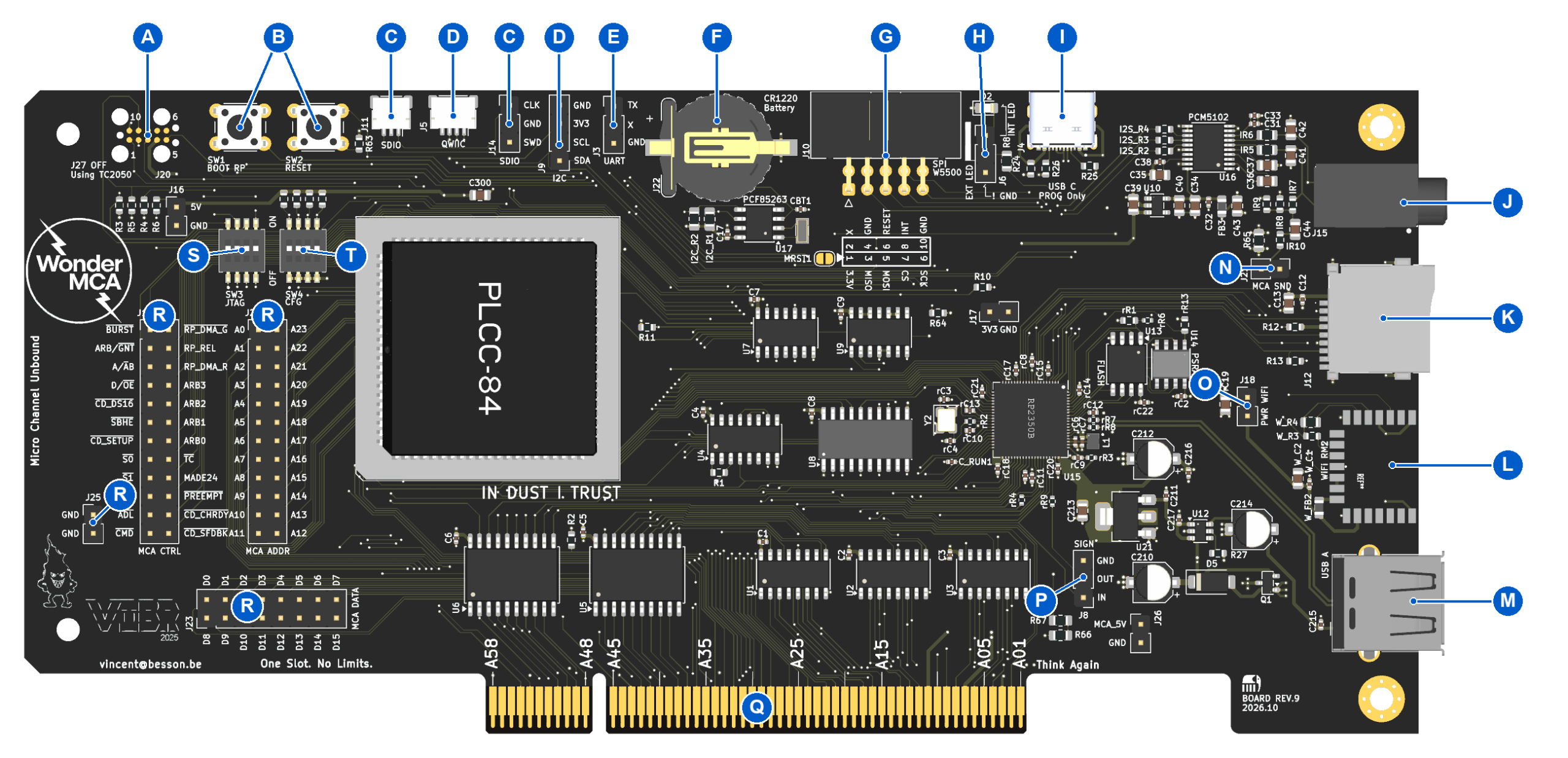
| Part | What it is for | |
|---|---|---|
| A | TC2050 pads (J20) | For programming the CPLD with an external JTAG cable (Tag-Connect TC2050). Not needed in normal use. When you use a cable, the four JTAG switches (S) must all be off, or the processor can be damaged |
| B | BOOT RP (SW1) and RESET (SW2) buttons | RESET restarts the card. Holding BOOT RP while you press RESET starts the RP2350 in its USB bootloader, for a firmware update through the USB-C port (I). Pressing RESET while the PS/2 runs pulls the card from under it, and the PS/2 usually hangs |
| C | SWD debug port (J11, J14) | A 3-pin connector for the Raspberry Pi Debug Probe, and the same signals on pins. Development only |
| D | I2C: Qwiic connector (J5) and pins (J9) | The screenpad connects here. Both carry the same 3.3 V I2C bus: SDA, SCL, 3.3 V and GND. The card’s clock chip is on this bus too |
| E | UART console (J3) | Console output: TX and GND, 3.3 V levels, 115200 baud, 8N1. The middle pin, marked X, is not connected: the console only transmits |
| F | Battery holder (J22) | Takes a CR1220 coin cell, + side up under the clip. It keeps the card’s clock running while the PS/2 is off |
| G | W5500 Ethernet connector (J10) | For an optional W5500 Ethernet module. The pinout is printed next to it. It shares pins with the WiFi module (L), so going from WiFi to Ethernet or back needs the PS/2 switched off and on |
| H | Board LED (D2) and LED jumper (J6) | Blinks at start-up and during a CPLD update. Jumper on INT: the LED on the card. For a LED in the bracket, remove the jumper and wire the LED to the EXT pins: anode on the middle pin, cathode on GND. The series resistor is on the card |
| I | USB-C port (J4) | Firmware updates only, with the card out of the PS/2. It also powers the card on the bench. Read the rules below |
| J | Audio output (J15) | 3.5 mm stereo jack, line level. Connect powered speakers or an amplifier |
| K | microSD slot (J12) | Settings, disk images and CPLD updates, on a FAT32 card |
| L | RM2 WiFi module (U11) | Raspberry Pi RM2 module (CYW43439): 2.4 GHz WiFi for the network card emulation. It sits at the bracket end of the card |
| M | USB-A port (J7) | USB host: keyboard, mouse, game pad, USB stick, USB Ethernet adapter. Its supply is current-limited |
| N | MCA SND jumper (J21) | Fitted: the card’s sound also goes to the Micro Channel audio line, which most PS/2 models play through their internal speaker. Removed: sound on the jack (J) only |
| O | PWR WiFi jumper (J18) | Powers the WiFi module (L). Remove it to switch the module off completely if you never use WiFi |
| P | DEBUG pins (J8) | Two spare signals (IN, OUT) and GND, for development. Leave them unconnected |
| Q | Micro Channel edge connector (J13) | 16-bit connector: the card fits 16-bit and 32-bit slots. Do not touch the gold fingers |
| R | Probe headers (J1, J24, J23, J25) | Every bus signal on labelled pins, for a logic analyser. Not needed in normal use |
| S | JTAG DIP switches (SW3) | Connect the RP2350 to the CPLD’s JTAG port for a CPLD update. All four off for normal use. All four on only for an update. On is towards the top edge of the card, as printed on the board |
| T | CFG DIP switches (SW4) | SW_CFG1 to SW_CFG4: DMA channel, data bus width and extended memory window. On is towards the top edge of the card |
The DIP switches
The four CFG switches (T) are set by hand. “On” means the switch is closed. The purpose of each DIP may change on the coming release of the WonderMCA firmware, please read the release note carefully before upgrading.
| Switch | Off | On |
|---|---|---|
| SW_CFG1 | DMA channel 1 (arbitration level 1) | DMA channel 3 (arbitration level 3) |
| SW_CFG2 | Extended memory window code, see Memory | |
| SW_CFG3 | Extended memory window code, see Memory | |
| SW_CFG4 | Extended memory window code, see Memory |
- SW_CFG1 must agree with the DMA Priority you choose on the Reference Diskette: off with Level 1, on with Level 3.
- memory errors at POST (error 201). The current firmware is the 16-bit build, so SW_CFG2 is on.
- The 16-bit build moves extended memory about 1.7 times faster than the 8-bit build.
- With no extended memory, SW_CFG3 and SW_CFG4 are both off.
Note. If you move one card between computers, set the switches, check the CPLD revision and edit config.txt again each time. See Memory.
Before you install the card
- Switch the PS/2 off.
- Check that the four JTAG switches (S) are all off. With all four on, the card waits for a CPLD update and the PS/2 does not see it. With some on and some off, the card stops with the red LED of the screenpad lit. The card does not boot while the JTAG switches are not off.
- Unplug the USB-C cable (I). Never insert the card with the cable connected. The USB-C port is only for firmware updates, with the card out of the PS/2:
- it powers the card, so with the cable in you would plug a live card into the slot;
- with the PS/2 off, the card’s logic would run from USB and drive the bus of a machine that has no power;
- USB-C and USB-A (M) share the same USB lines, so a computer on the USB-C port would be a second host on the same wires;
- it links the grounds of two computers.
- Never fit a jumper on the test pins marked 5V, 3V3 or MCA_5V with GND beside them. It would short the supply.
- Insert or remove the microSD card only with the PS/2 off. The card writes settings and disk images to it.
- Touch the metal frame of the PS/2 before you pick up the card. Hold the card by its edges. Do not touch the gold fingers (Q) or the chips.
Installing the card
- Fit the front and the back brackets. Take care with the WiFi antenna and the audio jack.
- Set the CFG switches (T) and check that the four JTAG switches (S) are off.
- Prepare the microSD card (page 03) and insert it.
- Check that the USB-C cable is unplugged and that the PS/2 is switched off.
- Plug the card into any 16-bit or 32-bit slot. Hold it by the top edge and the bracket, mind the WiFi module (L), and push it straight in. Screw the bracket.
- Connect the screenpad to the Qwiic connector or the I2C pins (D), if you have one.
- Boot the PS/2 from its Reference Diskette. Copy
@DEAD.ADFonto the Reference Diskette first. A ready-made 1.44 MB image with the file already on it is available with the card files. - Run Automatic configuration, or choose the settings by hand in Change configuration.
The adapter ID is 0xDEAD and the adapter name shown by the setup program is WonderMCA (1.0) by ViBR.
Settings offered by the Reference Diskette
| Setting | Choices | Used for |
|---|---|---|
| I/O Address | 220h, 230h, 240h, 250h, 260h | Sound Blaster base port, by default select 0x220h |
| Interrupt | IRQ 5, IRQ 7, IRQ 3 | Sound Blaster interrupt, by default select IRQ5 |
| DMA Priority | Level 1, Level 3 | Sound Blaster DMA channel. Must match SW_CFG1 |
| Joystick Enable | Enabled, Disabled | Game port at 200h to 20Fh |
Note. The card’s logic answers the Sound Blaster at 220h to 22Fh only. Choose 220h. See Sound and game port.
Give each device its own interrupt. The card can deliver interrupts 3, 5, 6 and 7 only, by default the WonderMCA uses IRQ7 for internal interrupt and Network:
| Interrupt | Used by |
|---|---|
| 3 | The serial mouse of the card (COM2), when USB Mouse is on |
| 5 or 7 | The Sound Blaster (the Interrupt setting above) |
| 5, 6 or 7 | The NE2000 network card (Network). Under OS/2 the NE2000 driver accepts 5 only |
| 6 | The floppy controller of the PS/2 |
The serial port 2 of the system board
The serial mouse of the card answers at 2F8h to 2FFh (COM2) on interrupt 3. The Reference Diskette does not reserve that range. If you use the USB mouse, switch off the serial port of the system board that uses COM2 (Serial Port in the configuration of the PS/2). When both answer at the same address, the mouse is not detected, and some PS/2 models report a serial port conflict at POST. With USB Mouse on, the option ROM declares COM2 to the BIOS of the PS/2 itself, so DOS, Windows and OS/2 find the port although the system board’s port is off. See USB devices.
Note. USB mouse with the WonderMCA needs to disable the COM2 port on your chassis using the reference disk of your system. Please note that using automatic configuration, COM2 can be reactivated
Checking that the PS/2 sees the card
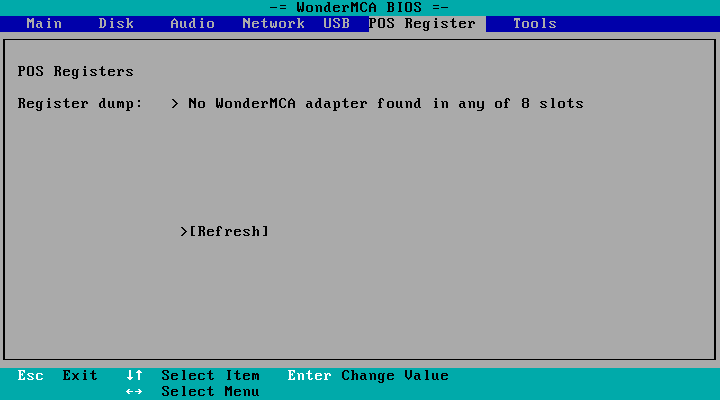
Press S at the boot banner and go to the POS Register page of the setup menu. It reads the configuration that the Reference Diskette wrote into the card: the slot, the adapter ID 0xDEAD, and the decoded settings.
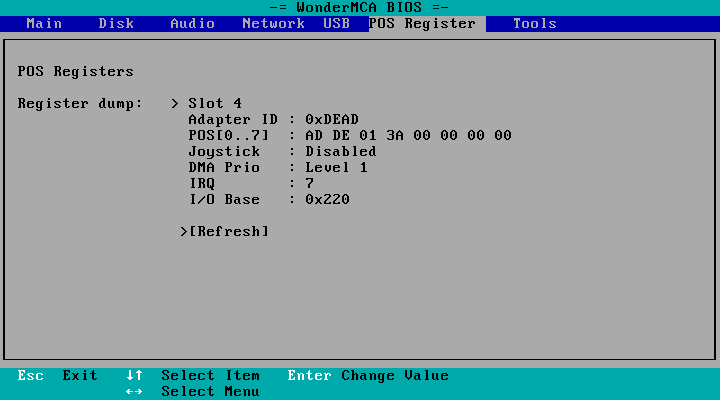
If the page says No WonderMCA adapter found in any of 8 slots, the card is not configured: run the Reference Diskette again with @DEAD.ADF on it.
Resources the card always uses
| Resource | Range | Function |
|---|---|---|
| I/O | 388h to 389h | AdLib (OPL2) |
| I/O | 250h to 253h | CD-ROM interface |
| I/O | 2A0h to 2A7h | Card command ports, used by the option ROM |
| I/O | 300h to 327h | NE2000 network card and GUS |
| Memory | D0000h to D5FFFh | Option ROM (D0000h to D3FFFh) and shared RAM (D4000h to D5FFFh) |
No other adapter may use these ranges. The setup program marks a conflict with an asterisk.
The first power-up
- Switch the PS/2 on. The first time, the PS/2 reports error 165 (adapter not configured) until you run the configuration with the Reference Diskette. See Troubleshooting. Please note that some chassis will not loaded the boot rom of the WonderMCA without clearing the ERR165 (this is the case for most of the 95XX chassis)
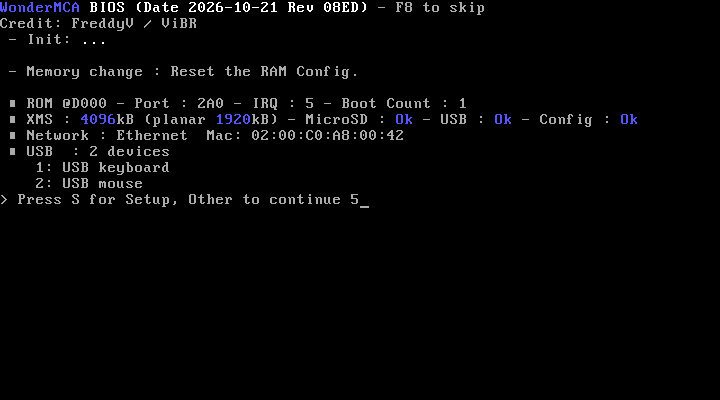
- During the memory count and the adapter ROM scan, the option ROM prints its banner. The boot sequence is on the usage guide.
- If you fitted extended memory, the PS/2 reports error 164 (memory size changed) once. Run the automatic configuration again. See Memory. The banner of the card then shows one extra line, – Memory change : Reset the RAM Config., at the first start after the change.
The screenpad
The screenpad is a small control panel. It has a 128 x 64 display, a rotary knob that you can press, four buttons (ENTER, UP, DOWN, RET) and four LEDs. It plugs into the I2C connector (D). It works with the case closed if you mount it in a drive bay or on the bracket. Without a screenpad, the card works: you do the same things in the setup menu or with wmctrl. The screens are on the screenpad reference.
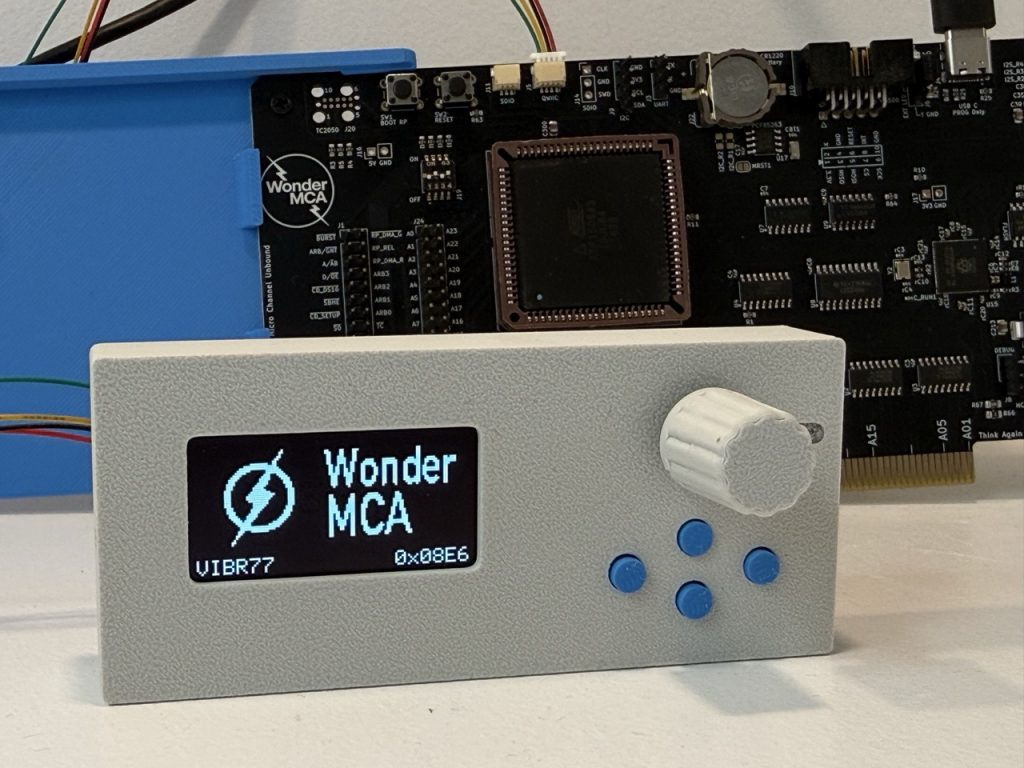
The screenPad LEDs
The four LEDs, from the first to the fourth:
| LED | Colour | Meaning |
|---|---|---|
| LED0 | red | Blinks when an error is detected like disk image or a CD image could not be mounted. Steady on when a CPLD update failed or when the JTAG switches are in a wrong position |
| LED1 | green | Disk activity: on while the card reads or writes a mounted image |
| LED2 | blue | Not used by the current firmware |
| LED3 | yellow | A CPLD update is in progress |
When the card starts, the four LEDs light in turn for half a second: that is the LED test.
Power
The card takes its power from the Micro Channel. The USB-C port also powers it, but only use it for firmware updates with the card out of the computer. The USB-A port feeds a keyboard, a mouse or a game pad; its supply is current-limited.
← Previous
Next →
WonderMCA user documentation Documentation home