
WonderMCA · User documentation
How to check the versions of the firmware, the option ROM and the CPLD, how to update the firmware through USB-C, and how to update the CPLD from the microSD card with the four JTAG switches, with every screen of the update.
← WonderMCA documentation home · Page 4 of 18
On this page — 3 sections
The card has three pieces of software: the firmware of the RP2350, the boot ROM that the firmware serves to the PS/2, and the logic of the CPLD. The option ROM is part of the firmware file. The CPLD is updated separately. The card is on 02-hardware-and-installation. The microSD card is on 03-microsd-card-preparation.
The three pieces are updated using the same process via the microSD or the USB-C connector on the board
Which versions do you run?
| What | Where you see it | Current |
|---|---|---|
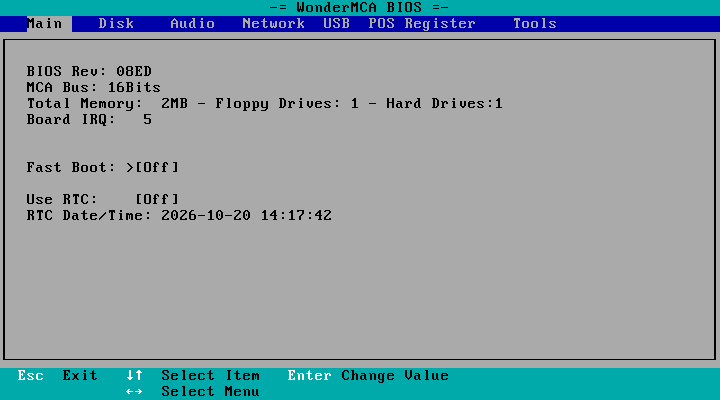
| boot ROM | The boot banner: WonderMCA BIOS (Date … Rev 08ED). The Main page of the setup menu: BIOS Rev. The screenpad logo at power-on: 0x08ED | 08ED |
The screenpad, Others > Information, line FW: (for example 0.1-b0002), and the line Build: with the build date | ||
| Bus width of the firmware | The Main page of the setup menu: MCA Bus: 16Bits or 8Bits | 16Bits |
| CPLD | The CPLD update screens show the revision from the name of the update file. No setup page shows it | 123 |
Note. not every firmware release comes with a CPLD update, if you switch from 8-bit to 16-bit data bus firmware you need to change the CPLD firmware otherwise the card will not work anymore (and vice versa).
Updating the firmware
You update the firmware through the USB-C port, with the card out of the PS/2.
- Switch the PS/2 off and take the card out of it (page 02).
- Choose the right file. The firmware comes in two builds: 16-bit and 8-bit. by default the card is shipped with the 16-bit bus cold configuration
- Connect the USB-C port of the card (I) to your computer.
- Hold the BOOT RP button (B, SW1) and press RESET (SW2). Release both. The RP2350 starts its USB bootloader and a USB drive appears on your computer.
- Copy the
.uf2firmware file onto that drive. The card restarts by itself when the copy ends. - Unplug the cable. Put the card back in the PS/2 (with the PS/2 off) and start it.
- Check the version (above).
Warning. Never plug the card into the PS/2 while the USB-C cable is connected.
Your settings stay in PICOMEM.CFG on the microSD card. The option ROM revision changes with the firmware: after an update, the banner, the Main page and the screenpad logo show the new revision.
Updating the CPLD
The card reprograms its own CPLD from a file on the microSD card, with no JTAG cable. This is for a new logic revision. It is not part of normal use. It needs a board revision 9, which has the four JTAG switches. A board revision 8 needs a cable on the TC2050 pads.
What you need
- A programming file for the ATF1508 made for the WonderMCA, in
.svfformat (or.xsvf). It must erase the CPLD first: it must contain Erase, Program and Verify. If your tool makes the erase and the verify as separate files, you can use three files. - The microSD card.
- The screenpad is recommended: it shows the progress and the result.
Warning. Use a file that keeps the JTAG port of the CPLD on. A file built with JTAG switched off makes the CPLD impossible to reprogram, by this card or by a cable. If you build the file yourself, check that the fitter report says JTAG = ON and Security_mode = OFF.
The file names
Put the files in a folder named UPGRADE at the root of the microSD card:
| File | Role |
|---|---|
cpld_upgrade.svf or cpld_upgrade_123.svf | The programming file. Required. The number after the underscore is the CPLD revision. It is only there so that you can see later what was programmed: the screens show it |
cpld_erase.svf | Optional. An erase step, played first |
cpld_verif.svf | Optional. A verify step, played last |
- A binary
.xsvffile is accepted in place of an.svffile. - Case does not matter.
- Only one file of each kind may be in the folder. With two, the card cannot tell which revision you mean and stops.
Step by step
- Switch the PS/2 off.
- Set the four JTAG switches (S) to On, towards the top edge of the card:
| Switch | Signal |
|---|---|
| SW1 | TCK |
| SW2 | TMS |
| SW3 | TDI |
| SW4 | TDO |
- Copy the file or files to
UPGRADEon the microSD card and insert the card. - Switch the PS/2 on. The card does not serve the bus: the PS/2 does not finish its own start-up during an update. That is normal.
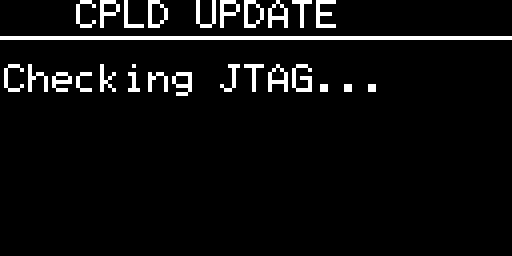
- The screenpad shows CPLD UPDATE and Checking JTAG… while the card tests the connection to the CPLD.
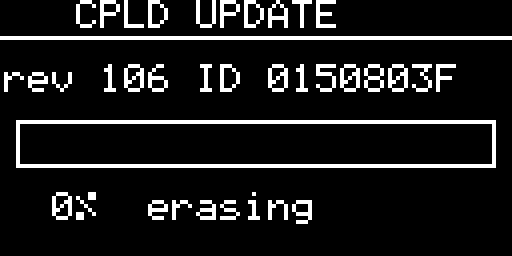
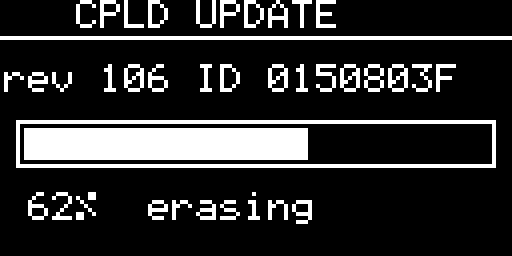
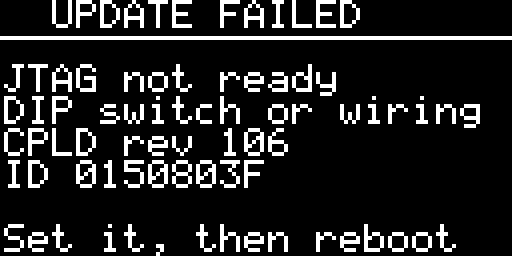
- Then it shows the revision from the file name and the identification code read from the CPLD (
rev 106 ID 0150803Fin the pictures), a progress bar, the percentage and the step: erasing, programming, verifying. The yellow LED (LED3) is on. This takes about a minute.
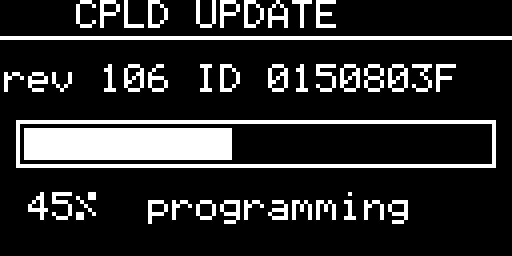
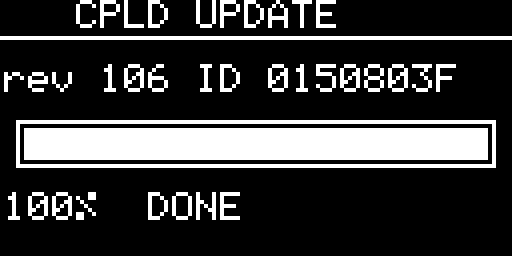
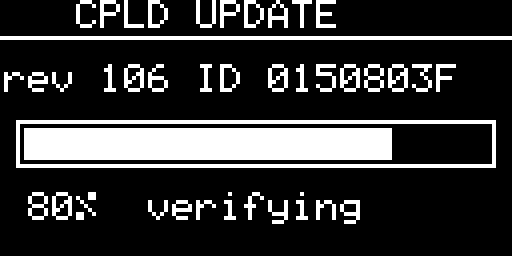
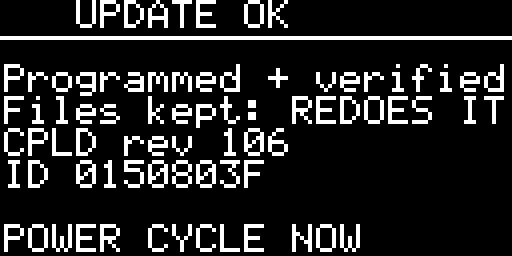
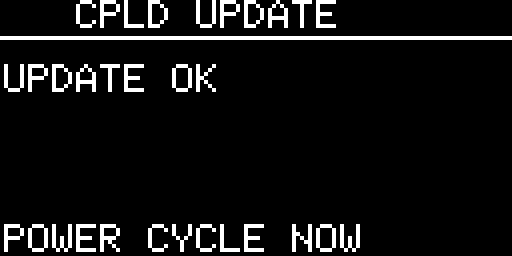
- When it is done, the board LED blinks and the screenpad shows the result page UPDATE OK: Programmed + verified (or Programmed (no verify) when the files held no verify step), Files kept: REDOES IT, the revision, the identification code and POWER CYCLE NOW. The page then gives way to the stop screen. The card has stopped.
- Switch the PS/2 off. Set the four JTAG switches back to Off.
- Remove the update files from the microSD card. The files stay on the card: that is what Files kept: REDOES IT means. If you leave them and set the switches again, the card erases and programs the CPLD again. The CPLD survives only a limited number of erase cycles.
- Switch on. The card starts normally.
The messages of the update also go to UPGRADE/cpld_upgrade.log on the microSD card, rewritten at every update. The log lists Programmed + verified when the files contained verify steps, and Programmed (no verify) when they did not.
All four switches, or none
SW1 and SW2 take interrupts 6 and 7 away from the bus. While the switches are on, the card cannot serve the machine and does nothing but the update. If only some of them are on, the card can do neither job: it stops with the red LED (LED0) lit and shows the switch positions:
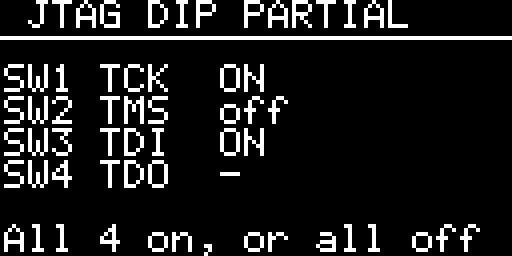
Set all four the same way and switch the PS/2 off and on. SW4 always shows a dash: the card cannot read that switch. If SW4 is off during an update, the card stops with No device answers, having written nothing.
The messages of the update
| Screenpad | Meaning | What to do |
|---|---|---|
| JTAG DIP PARTIAL | Some of the four switches are on and some are off | The card has stopped. Set all four, or all four off, and power cycle. Nothing was written |
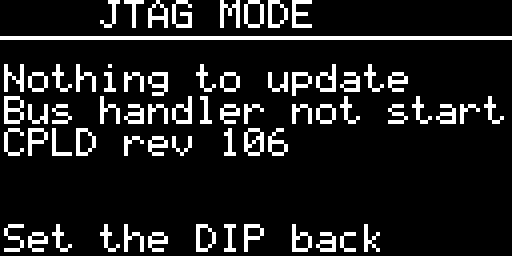
| JTAG MODE with Nothing to update and Bus handler not started | The switches are on but there is no update file | Not an error, no red LED. The card waits. Set the DIP back and power cycle |
| UPDATE FAILED with JTAG not ready and DIP switch or wiring (or TCK DIP switch is off) | A signal does not reach the CPLD | Check the switch and the wiring, then reboot. Nothing was written |
| UPDATE FAILED with No device answers and All 4 switches read ON | The switches are on but the CPLD does not answer | Check the TDO and TDI wiring and SW4. Nothing was written |
| UPDATE FAILED with SEVERAL FILES and in 0:/UPGRADE | More than one file of the same kind | Leave exactly one of each kind |
| NO SVF FILES and in 0:/UPGRADE | The switches are on, the folder exists, but it holds no .svf or .xsvf file | Copy the file, or set the switches off |
| UPDATE FAILED with Erase step or Programming step and a reason, then Fix and reboot | The update stopped part way. The bar shows the percentage reached and FAILED | The CPLD is in an unknown state. Try again. If it fails again, program it with an external JTAG cable |
| VERIFY FAILED | The content read back differs from the file. The second line says where (line 412 in the picture) | Try again. If the CPLD no longer answers after the update, the file may have switched the JTAG port off: program the CPLD with an external JTAG cable |
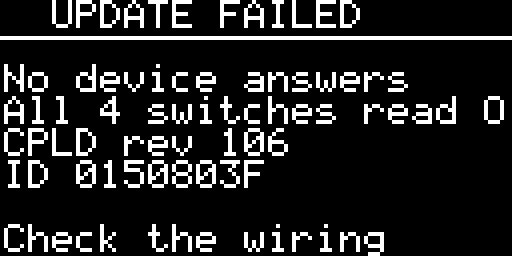
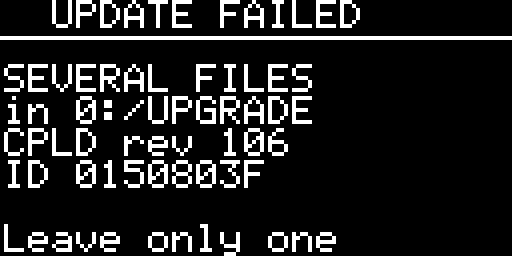
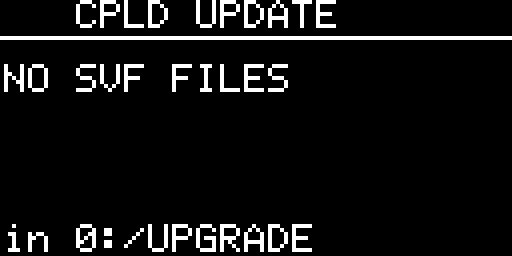
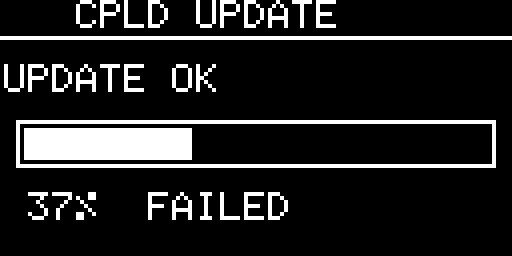
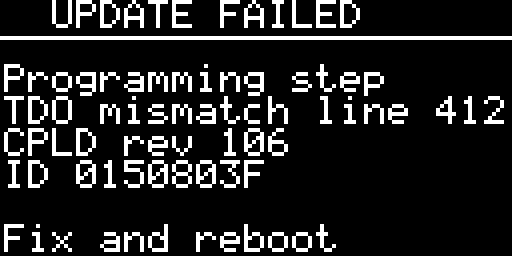
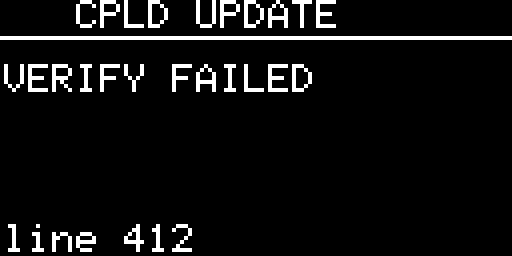
A failed update does not ruin the card: the CPLD can always be reprogrammed with an external cable. After a failure the update files are left in place, and cpld_upgrade.log holds the whole run. Send it with your report.
Choosing the files by hand
With CPLD_UPDATE_AUTO 0 in config.txt, the card does not play the files by itself. After the checks, the screenpad lists the .svf and .xsvf files of the UPGRADE folder, in the order erase, program, verify. The title shows the revision and the identification code. A star after a name marks a file already played. A name too long for the row is cut at its start and begins with ~. The bottom row shows the position in the list and the keys: ENTER run RET.
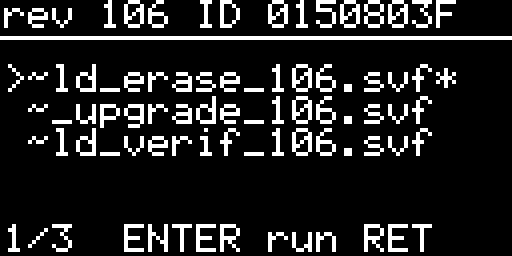
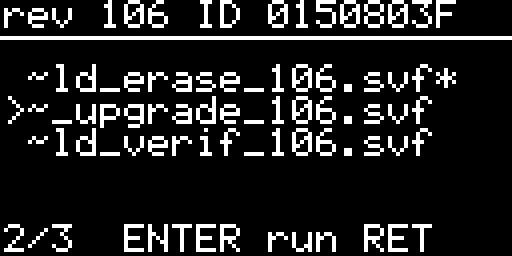
| Key | What it does |
|---|---|
| Knob, UP, DOWN | Choose a file |
| ENTER | Play the chosen file |
| RET | End the session. The screen says SESSION ENDED and POWER CYCLE NOW |
This mode needs the screenpad. Without one, the card stops with NO SCREENPAD and asks for CPLD_UPDATE_AUTO 1.
Turning the feature off
CPLD_UPDATE 0 in config.txt switches the whole feature off: the card ignores the four switches, starts normally and never looks at the UPGRADE folder. Use it only if the switch check gets your board wrong, and keep the switches off: a switch left on lets the card’s interrupts reach the programming port of the CPLD. CPLD_UPDATE 0 wins over CPLD_UPDATE_AUTO.
If the CPLD misbehaves after an update
Programming a CPLD that was not erased first leaves it wrong without any message. Check that your file contains the erase, or that you used a cpld_erase.svf. The log says no cpld_erase file: the program file must erase the device itself when no separate erase file was found.
Warning. Never use the TC2050 connector with the JTAG CFG switch off, it can damaged the RP2350 due to 3.3V vs 5V GPIO. at the end of the CPLD update process, it is very important to switch JTAG CFG back off.
← Previous
Next →
WonderMCA user documentation · Documentation home