
WonderMCA · User documentation
How to use the WonderMCA every day: what the PS/2 shows at power-on, the boot prompts, the setup menu page by page with its exact entries and screens, how to choose and swap images, create a new hard disk image, control the card from DOS with wmctrl, and save your settings.
← WonderMCA documentation home · Page 5 of 18
This page follows what you do, in the order you do it. The screenpad is on the screenpad reference. Every setting is explained on the configuration reference.
Before you start. The card is installed and configured with the Reference Diskette (hardware and installation), the firmware is current (firmware and CPLD update) and the microSD card holds your images (microSD card preparation).
1. Power on
- Switch the PS/2 on. The PS/2 counts its memory and scans its adapters. With a screenpad, the display shows its logo, then the code of the POST step in large digits, with its meaning under it.
- When the PS/2 reaches the adapter ROM of the card, the card prints its banner on the screen and waits:
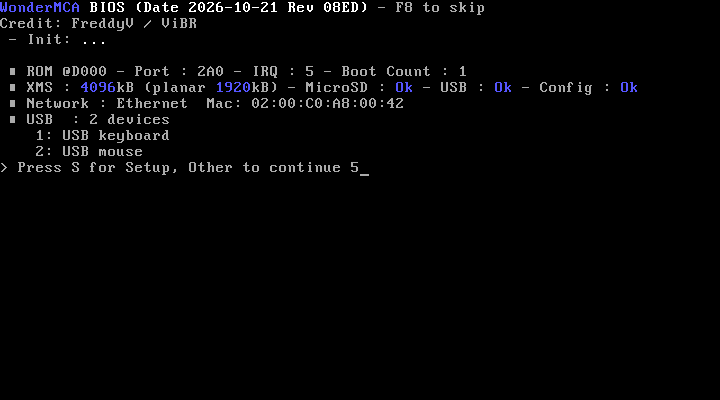
The lines of the banner, from the top:
| Banner | Meaning |
|---|---|
| WonderMCA BIOS (Date 2026-10-21 Rev 08ED) – F8 to skip | The date and the revision of the option ROM. Press F8 in the first five seconds to skip the card completely |
| – Init: … | One dot per step of the start-up of the card |
| ROM @D000 – Port : 2A0 – IRQ : 5 – Boot Count : 1 | The segment of the option ROM, the command port, the interrupt the card uses to talk to the option ROM, and how many times the card has booted the PS/2 since it was powered |
| XMS : 4096kB (planar 1920kB) | The extended memory of the card and the memory of the system board. XMS : None when it is off, XMS : Fail when the PSRAM failed its test |
| MicroSD : Ok | The microSD card was read. Fail when it was not |
| USB : Ok | The USB host started. Disabled when it is off |
| Config : Ok | The settings were read |
| Network : Ethernet Mac: … | None, WiFi, Ethernet or USB Eth, with the MAC address when the adapter is up |
| USB : 2 devices, then one line per device | What is plugged into the USB-A port, such as 1: USB keyboard and 2: USB mouse |
| > Press S for Setup, Other to continue 5 | The countdown, 5 seconds (1 second when Fast Boot is on) |
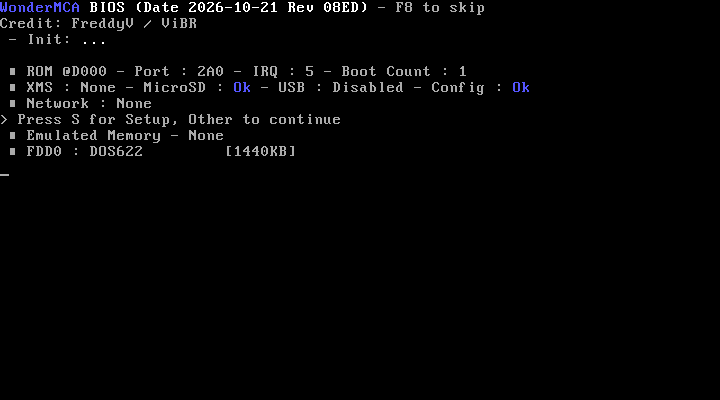
A minimal configuration prints fewer lines:
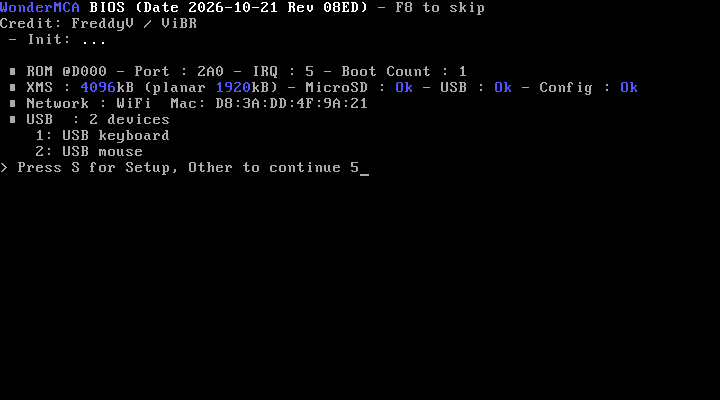
With a WiFi network, the Network line shows WiFi and the MAC address of the card’s radio:
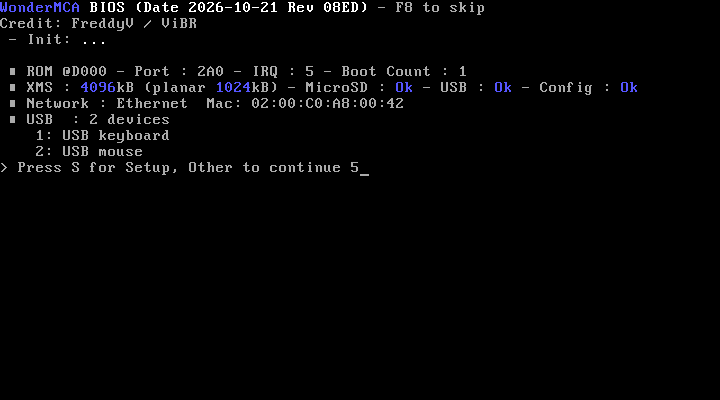
On a Model 50Z with 1 MB on the system board, the XMS line reads (planar 1024kB):
- Press S to open the setup menu (section 3). Press A to boot from the floppy first. Any other key, or no key, continues.
- The card prints Emulated Memory – None and the list of what is mounted:
![The banner once the start-up ended: "Emulated Memory - None", then FDD0 : DOS622 [1440KB], HDD0 : DISK1 [512MB] - C:1040 H:16 S:63, CD : WIN95 [612MB]](https://www.r3tr0.net/wp-content/uploads/2026/10/wm_bios_boot_banner_complete.png)
| Line | Meaning |
|---|---|
| FDD0 : DOS622 [1440KB] | The image in floppy A: (FDD1 is B:) and its size |
| HDD0 : DISK1 [ 512MB] – C:1040 H:16 S:63 | The image of hard disk 0 (HDD1 to HDD3 follow), its size and its geometry: cylinders, heads, sectors |
| CD : WIN95 [ 612MB] | The CD image |
When a configured image cannot be mounted, its line shows the reason in brackets instead of the size: No FLOPPY folder, No HDD folder, Image not found or Bad image. The red LED of the screenpad blinks.
Two special starts
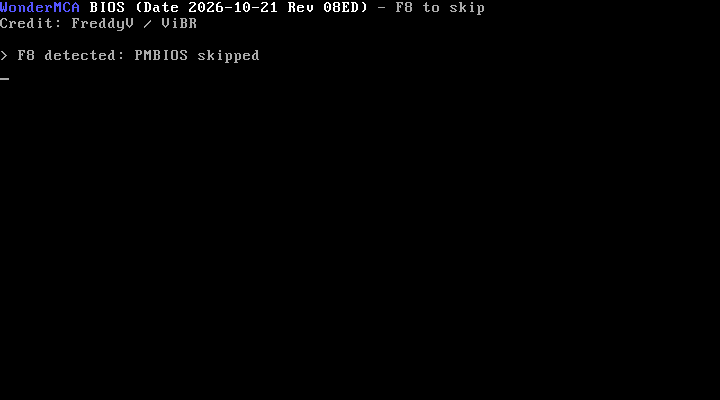
- F8 to skip. Press F8 during the first five seconds of the banner. The screen says > F8 detected: PMBIOS skipped and the PS/2 boots without the card’s drives, its memory and its devices. Use it when a setting of the card stops the PS/2 from booting.
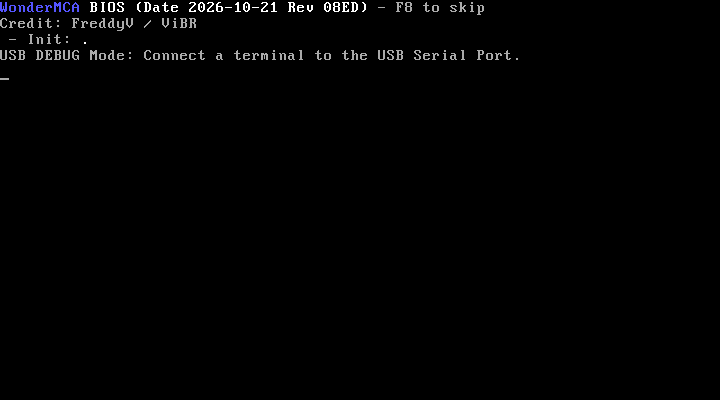
- USB DEBUG Mode. The option ROM can print USB DEBUG Mode: Connect a terminal to the USB Serial Port. and wait for a terminal before it goes on. That screen belongs to the PicoMEM card the firmware comes from: the WonderMCA firmware never asks for it. If you see it, the card runs a firmware that is not a WonderMCA build.
2. The boot prompts
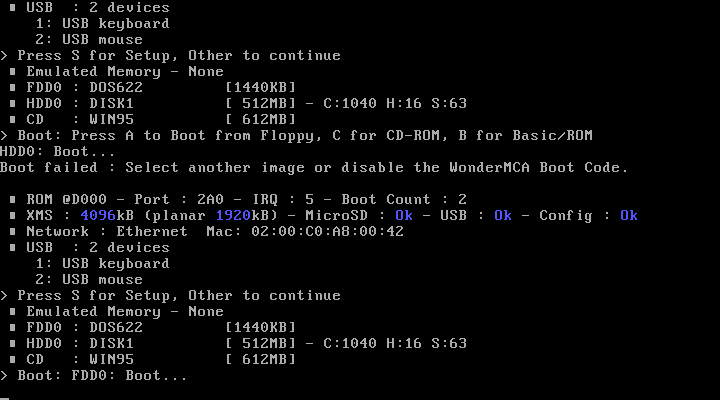
If Boot Code is on (Disk page of the setup menu), the card boots the PS/2 itself:
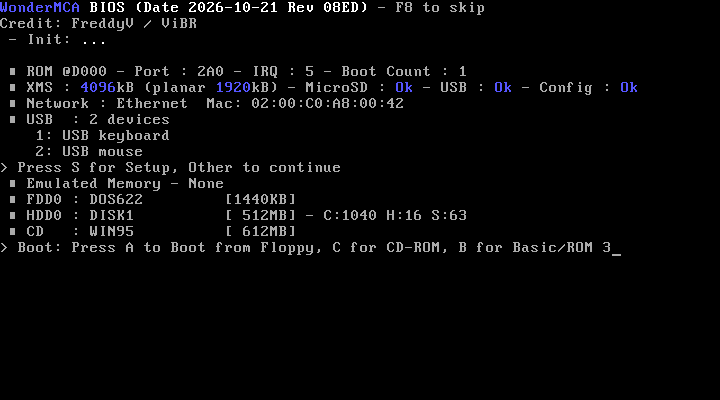
The countdown is 3 seconds (1 second when Fast Boot is on).
| Key | What happens |
|---|---|
| A or Q | Boots from the floppy first, then from the hard disks |
| C | Boots from the CD-ROM image (CD-ROM) |
| B | Goes to the Basic or ROM of the PS/2 (INT 18h) |
| R | Restarts the PS/2 |
| No key | Boots from the hard disks first (drive 0, then drive 1), then from the floppies (A:, then B:) |
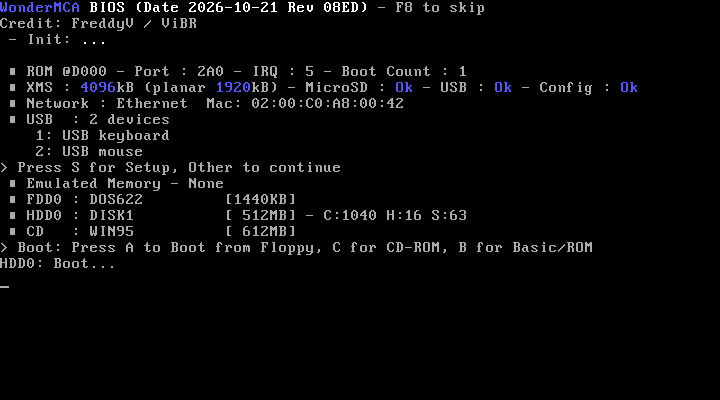
The screen then shows which drive boots:
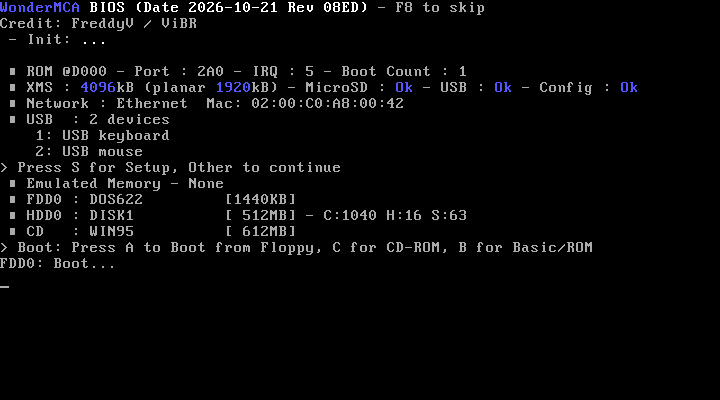
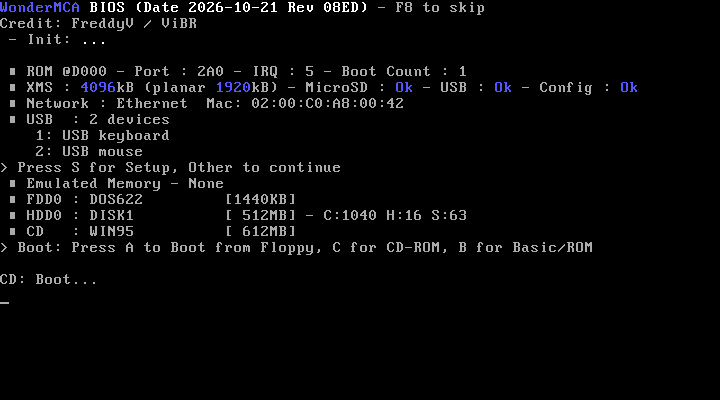
Messages you can meet:
| Message | Meaning |
|---|---|
| : Incorrect MBR | A hard disk has no boot signature. The card goes on to the next drive |
| CD: not bootable (no El Torito catalog / no disc) | You pressed C but the disc has no boot catalog, or no disc is mounted. The normal boot order goes on |
| > No Boot Disk found – Insert a Floppy and Press any Key. | No drive could boot |
| Boot failed : Select another image or disable the WonderMCA Boot Code. | The boot failed. The card prints its banner again, with Boot Count : 2, and the setup prompt |
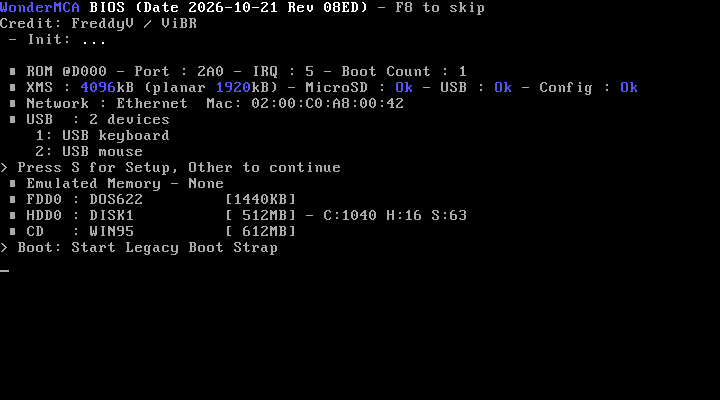
| > Boot: Start Legacy Boot Strap | Boot Code is off: the PS/2 boots as if the card had no boot code |
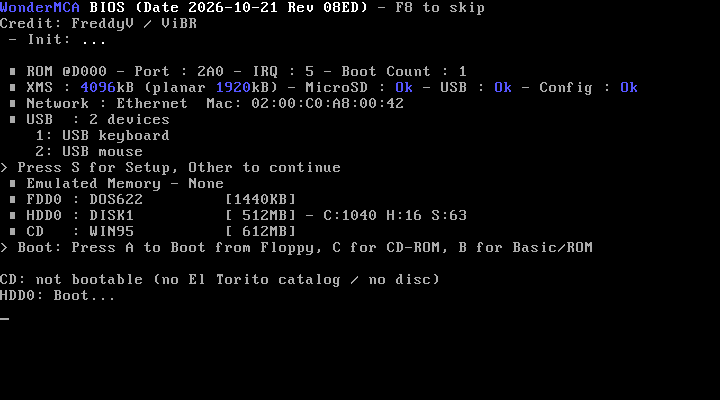
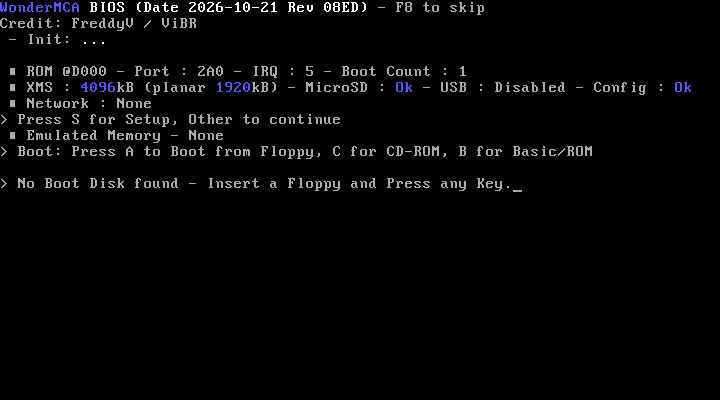
3. The setup menu
Press S at the banner. The title bar reads -= WonderMCA BIOS =-. The menu has seven pages:
Main | Disk | Audio | Network | USB | POS Register | Tools
The bottom of the screen shows the keys:
| Key | What it does |
|---|---|
| Left, Right | Change page. Left on Main goes to Tools, Right on Tools goes to Main |
| Up, Down | Move between the items of the page. The arrow > marks the item. Up on the first item goes to the last, Down on the last goes to the first |
| PgUp, PgDn | First and last item of the page |
| Enter, +, – | Change the item: toggle On and Off, or open a list |
| Esc | Leave the menu |
When you leave the menu with Esc, the card saves your changes to the microSD card and the boot goes on. USB, network and audio settings apply when the card finishes its start-up.
Note. The setup menu works with a USB keyboard when USB Keyboard is on.
3.1 Main
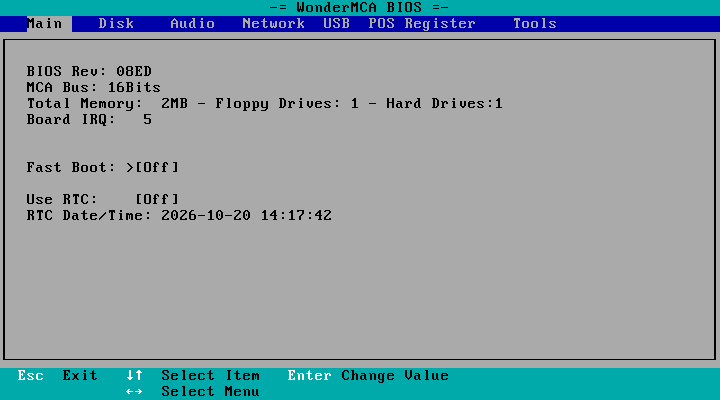
| Entry | What it shows or does |
|---|---|
| BIOS Rev | The revision of the option ROM |
| MCA Bus | 16Bits or 8Bits: the data bus width of the firmware, make sure CPLD is aligned with the MCA Bus |
| Total Memory | One line: the total memory of the PS/2 in MB (extended memory of the card included), the number of floppy drives and the number of hard disks |
| Board IRQ | The interrupt the card uses to talk to the option ROM |
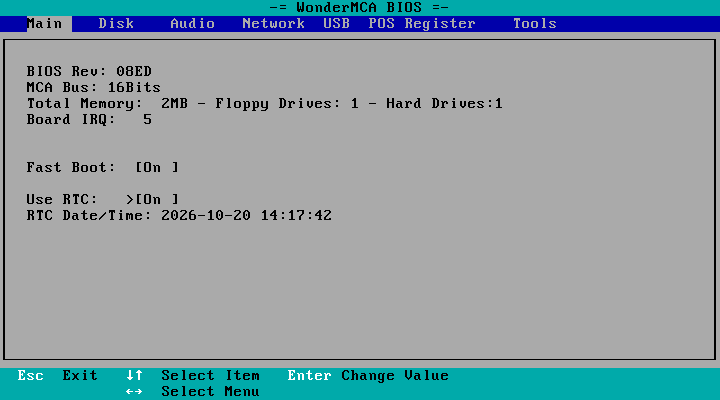
| Fast Boot | On or Off. On shortens the waiting time at the two prompts to 1 second |
| Use RTC | On or Off. On: the clock of the card sets the DOS clock at boot |
| RTC Date/Time | The clock of the card, as yyyy-mm-dd hh:mm:ss |
3.2 Disk
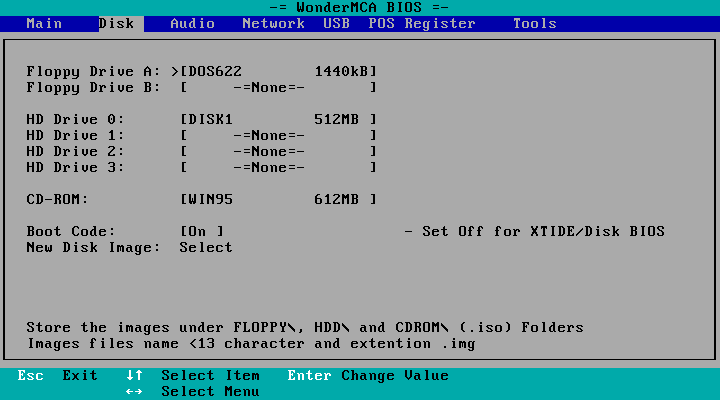
| Entry | What it does |
|---|---|
| Floppy Drive A:, Floppy Drive B: | Choose a floppy image |
| HD Drive 0: to HD Drive 3: | Choose a hard disk image |
| CD-ROM: | Choose a CD image |
| Boot Code: | On: the card runs the boot prompts. Off: the PS/2 boots by itself. The page says – Set Off for XTIDE/Disk BIOS |
| New Disk Image: | Select opens the dialog that creates a new hard disk image |
At the bottom the page reminds you: Store the images under FLOPPY, HDD\ and CDROM\ (.iso) Folders and Images files name <13 character and extention .img. If the card cannot be read, the page shows Warning: SD not present or error.
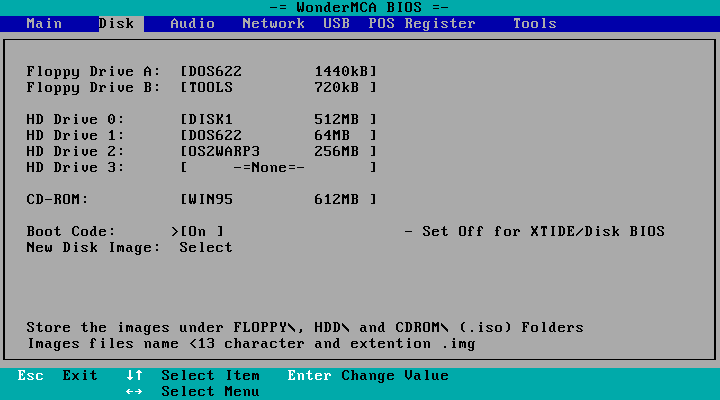
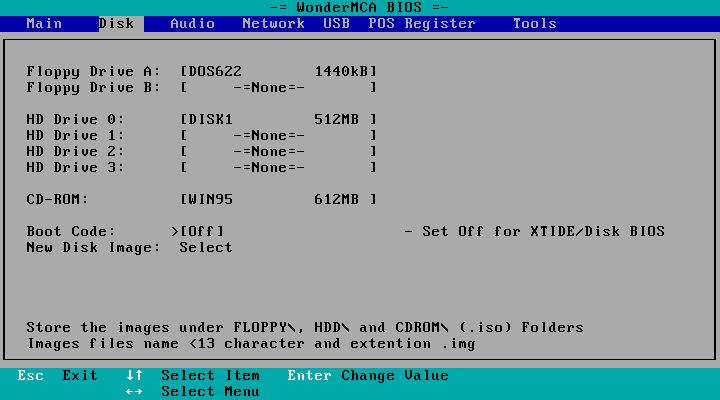
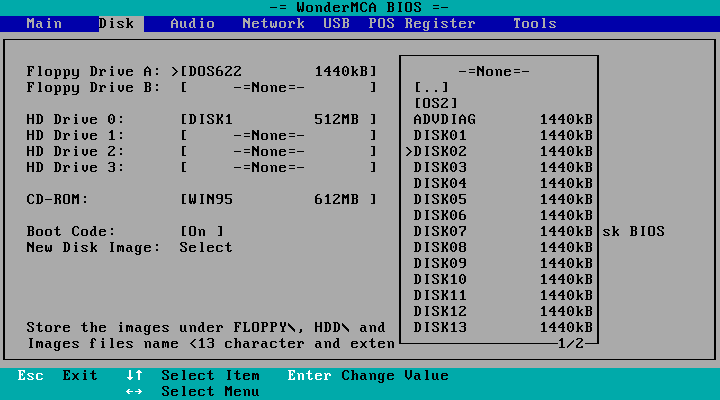
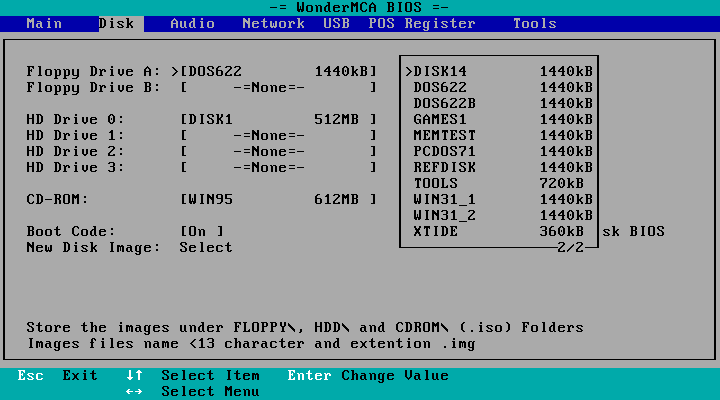
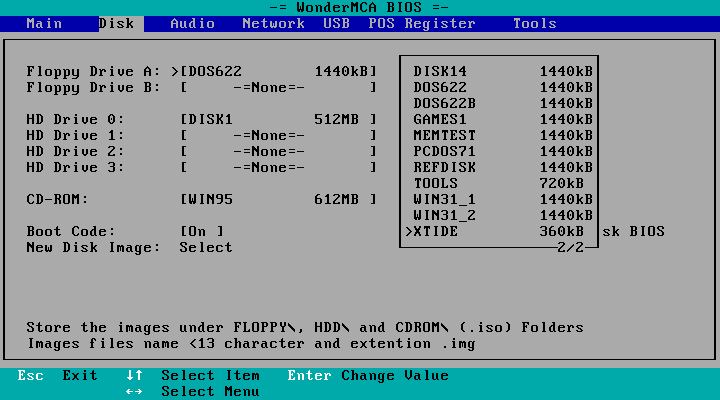
Choosing an image. Enter on a drive opens a list:
- The first line, on the first page, is -=None=-: it empties the drive.
- At the top of the list, [[SD]] and [[USB]] choose the volume. Inside a volume, folders show in square brackets,
[OS2]. Enter on a folder opens it.[..]goes up. - A floppy shows its size in KB, a hard disk or a CD its size in MB. A name that is too long shows Error as its size and cannot be selected.
- A page holds 16 entries. The page number shows at the bottom right, such as
1/2.
![The floppy list inside [SD]: -=None=-, [..], the folder [OS2], then eleven images sorted by name with their size, page 1/1](https://www.r3tr0.net/wp-content/uploads/2026/10/wm_bios_setup_disk_fdd_list.png)
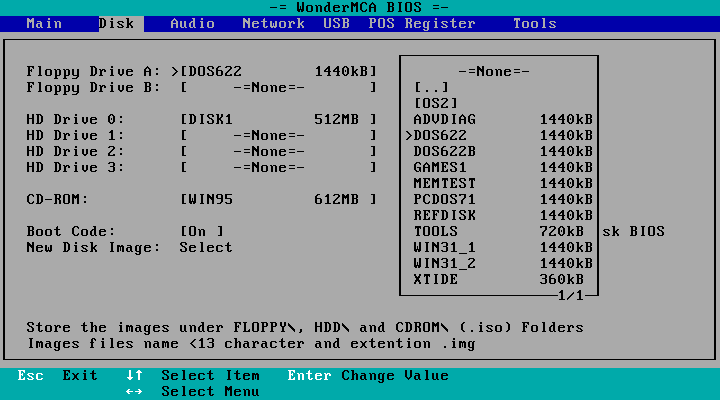
| Key | What it does |
|---|---|
| Up, Down | Move. Down at the end of a page goes to the next page. Up at the top goes to the previous page, on its last entry. Up on -=None=- goes to the last entry of the last page. Down on the last entry of the last page goes back to -=None=- |
| PgUp, PgDn | Previous and next page |
| Enter, Space | Select |
| Esc | Cancel |
![The hard disk list: -=None=-, [..], then the images with their size in MB](https://www.r3tr0.net/wp-content/uploads/2026/10/wm_bios_setup_disk_hdd_list.png)
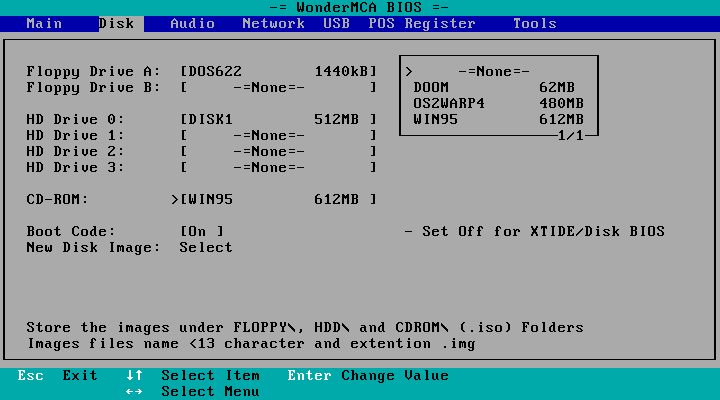
The floppy images and the CD image change at once. A hard disk image is mounted at the next start of the PS/2.
Creating a new hard disk image. See section 6.
3.3 Audio
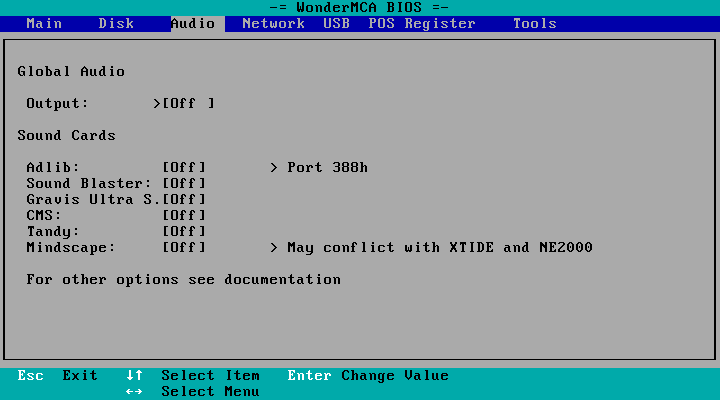
| Entry | Values | Notes |
|---|---|---|
| Output: | On, Off | The whole audio output of the card |
| Adlib: | On, Off | > Port 388h |
| Sound Blaster: | On, Off | When On, the row shows the port, the interrupt and the DMA channel read from the configuration of the PS/2: > Port 220 IRQ 7 DMA 1 |
| Gravis Ultra S. | On, Off | Cannot run with the Sound Blaster. When On, the row shows the same resources |
| CMS: | Off or a port | No effect on the WonderMCA |
| Tandy: | Off or a port | No effect on the WonderMCA |
| Mindscape: | Off or a port | No effect on the WonderMCA. > May conflict with XTIDE and NE2000 |
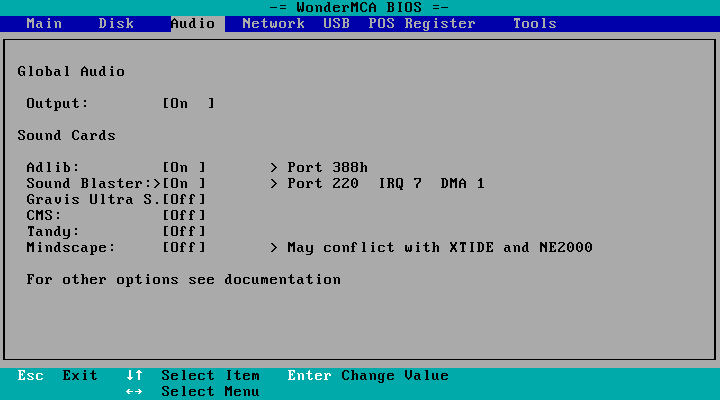
The page says For other options see documentation. See Sound and game port.
3.4 Network
![The Network page with Ethernet: IRQ 3, Port 300, "Status: Ethernet link up 100M", the MAC address, and the [Refresh] button](https://www.r3tr0.net/wp-content/uploads/2026/10/wm_bios_setup_network_ethernet.png)
| Entry | Values |
|---|---|
| Network: | None, Ethernet, WiFi, USB Eth |
| IRQ: | 3, 5, 6 or 7. The page says – NE2000 IRQ: 3/5/6/7 |
| Port: | 300h. The page says – NE2000 port range is 32 bytes |
| Status: | The state of the connection |
| MAC: | The MAC address |
| SSID : and Signal : | The WiFi network name and its strength, when WiFi is on |
| [Refresh] | Reads the state again |
Going from WiFi to Ethernet, or back, in one power cycle is refused with Power cycle needed. See Network, which shows the page for each network type.
3.5 USB
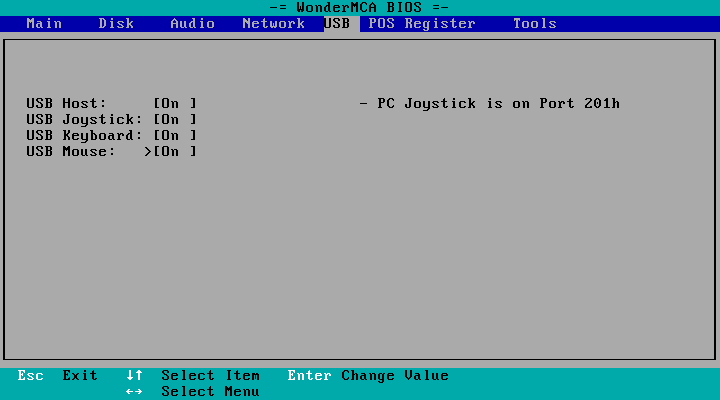
| Entry | Values |
|---|---|
| USB Host: | On, Off. The page says – PC Joystick is on Port 201h |
| USB Joystick: | On, Off |
| USB Keyboard: | On, Off |
| USB Mouse: | On, Off |
See USB devices.
3.6 POS Register
The page POS Registers shows the Register dump of the card: the slot, the adapter ID 0xDEAD, the eight POS bytes, and the decoded settings Joystick, DMA Prio, IRQ and I/O Base. [Refresh] reads it again. Use it to check that the Reference Diskette settings reached the card (hardware and installation).
![The POS Register page: Slot 4, Adapter ID 0xDEAD, POS[0..7], Joystick Disabled, DMA Prio Level 1, IRQ 7, I/O Base 0x220](https://www.r3tr0.net/wp-content/uploads/2026/10/wm_bios_setup_pos.png)
3.7 Tools
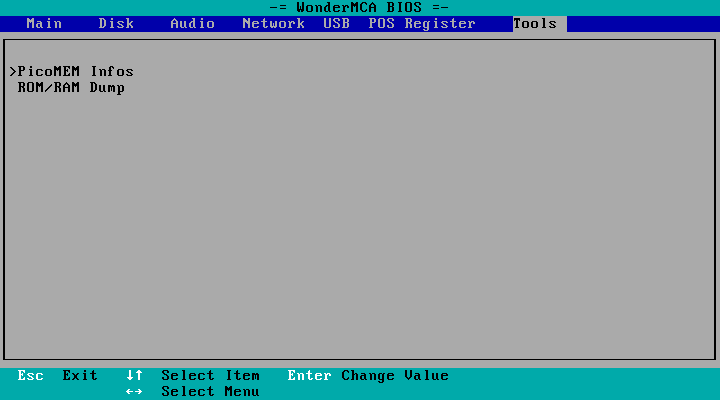
| Entry | What it does |
|---|---|
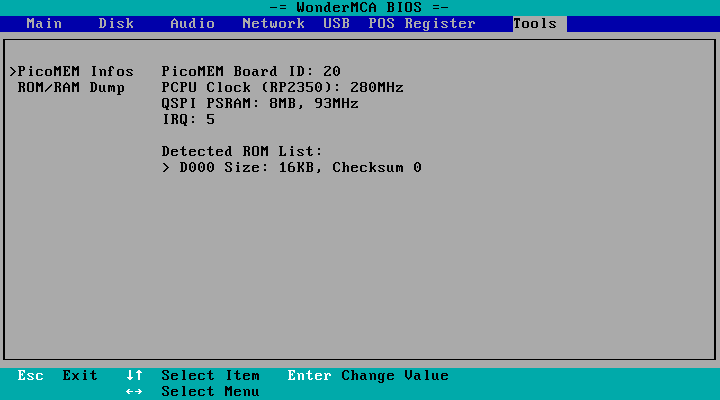
| PicoMEM Infos | Shows the board identity (PicoMEM Board ID: 20), the processor clock (PCPU Clock (RP2350): 280MHz), the PSRAM (QSPI PSRAM: 8MB, 93MHz), the interrupt, and the Detected ROM List: every option ROM the PS/2 found, with its segment, its size and its checksum |
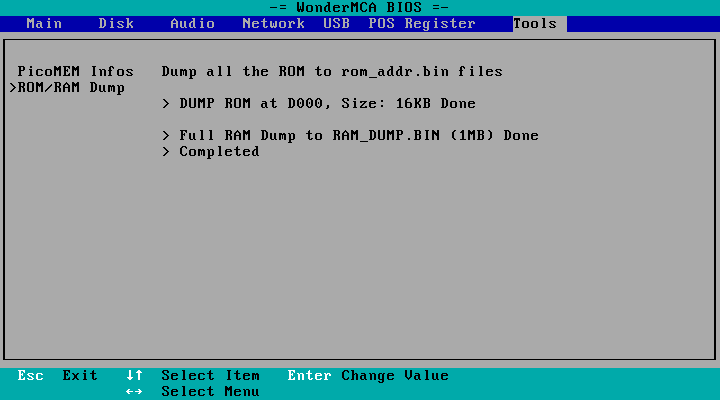
| ROM/RAM Dump | Copies each option ROM to a file ROM_<address>.BIN and the first megabyte of memory to RAM_DUMP.BIN, at the root of the microSD card. The page prints one line per ROM, then > Full RAM Dump to RAM_DUMP.BIN (1MB) Done and > Completed |
4. Mounting and swapping images
| What | Where | When it takes effect |
|---|---|---|
| Floppy A: or B: | Setup menu, screenpad, wmctrl | At once. DOS sees the new disk |
| CD-ROM | Setup menu, screenpad, wmctrl | At once |
| Hard disk 0 to 3 | Setup menu, wmctrl | At the next start |
To change a floppy while DOS runs, use the screenpad: Disk > Mount floppy, then A: or B:, then the image (screenpad reference). Or run wmctrl disk fdd a <image> in DOS (section 7).
DOS refreshes its view of the diskette when it is idle. If DIR A: still shows the old disk, run FDSWAP from the tools floppy, then DIR A:.
5. Booting from a CD
Press C at the boot prompt. See CD-ROM.
6. Creating a new hard disk image
- Open the Disk page and select New Disk Image: Select, then press Enter.
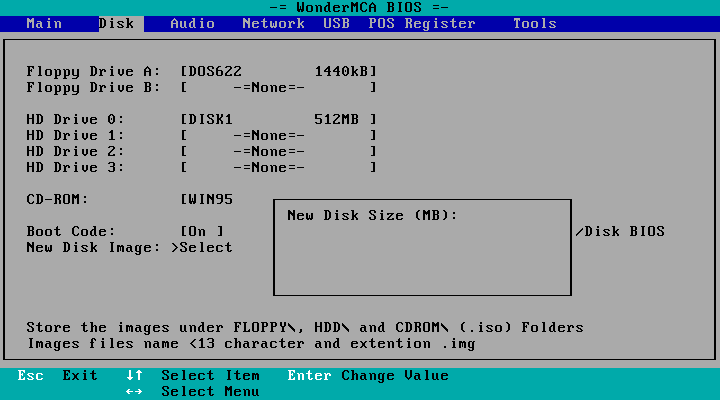
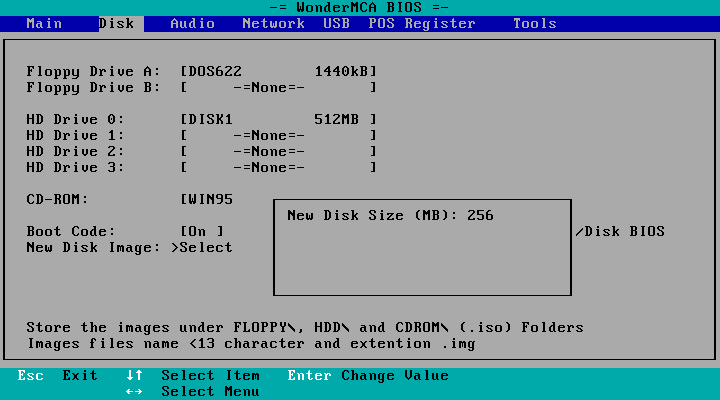
- The dialog asks New Disk Size (MB):. Type the size and press Enter. The size is brought to between 10 and 4096 MB.
- The dialog asks Disk Name:. Type a name of 13 characters at most and press Enter. An empty name cancels.
- The dialog shows Creating Image : n MB, then Done, or Error: with the reason. Press any key.
- The image is
HDD/<name>.imgon the microSD card. Select it as a hard disk (section 3.2). - Restart the PS/2, boot from a DOS floppy, then run
FDISKandFORMATon the new disk.
The reasons of an error: Image already exist, HDD directory missing, uSD Full, Write to file failed, Disk Operation failed.
8. Saving your settings
- The setup menu saves when you leave it.
- A floppy or CD mounted on the screenpad is saved at once.
- Settings you change on the screenpad pages Sound, Network and Disk config apply to the running card when you press RET. To keep a setting for the next start, also set it in the setup menu.
wmctrlsaves when you leave its menu with Save or press F10, and after every command.config.txtkeys win over the saved settings for the keys they set (configuration reference).
← Previous
Next →
WonderMCA user documentation Documentation home