
Your PS/2 can now go wireless. With the Bluetooth firmware, the WonderMCA pairs Bluetooth keyboards, mice and game pads, both Classic Bluetooth and Bluetooth Low Energy, and hands them to the PS/2 as the hardware it has always known: its own keyboard, a serial mouse and a joystick on the game port. No dongle, and nothing to install on the PS/2.
What the PS/2 sees
The card does all the Bluetooth work. The PS/2 never talks Bluetooth: each device arrives through a path that DOS and its programs already know.
- Keyboard: it is the PS/2’s own keyboard. The card sends the keys to the keyboard controller of the PS/2, so national layouts with
KEYB, Ctrl-Alt-Del and the repeat of a held key work as usual. A Bluetooth keyboard and a USB keyboard can be used together. - Mouse: a serial mouse on COM2 (2F8h, interrupt 3), Microsoft protocol. Your usual DOS mouse driver finds it.
- Game pad: a PC joystick on the game port at 201h. Two pads give two players, and a USB pad and a Bluetooth pad also give two players.
What you can pair
- Keyboards, Classic and BLE. Most ask you to type a six-digit code on the keyboard; older ones ask for a four-digit PIN; some BLE keyboards show a number and ask you to confirm it.
- Mice, Classic and BLE, with no code.
- Game pads: the Sony DualShock 4 and DualSense, the Nintendo Switch Pro Controller and Switch-style pads, 8BitDo pads, the Xbox Wireless Controller, and other standard Bluetooth game pads.
Up to four devices are connected at once, two of them game pads (the two players of the game port). The card remembers eight paired devices on its microSD card, and they come back by themselves after a restart or a power cycle of the PS/2: switch the device on and it reconnects.
Pair from the setup menu, or from the screenpad
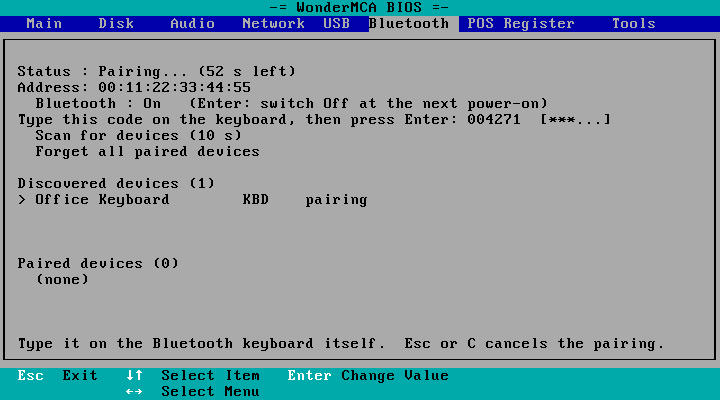
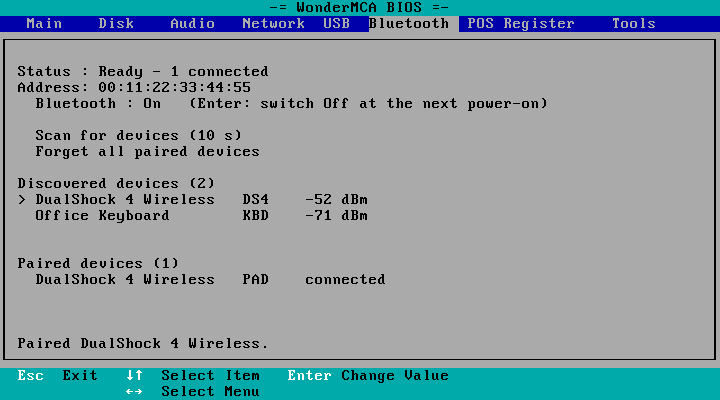
Press S at the WonderMCA banner and open the new Bluetooth page. Put the device in pairing mode, choose Scan for devices, select the device in the list and press Enter. A pad or a mouse pairs at once; a keyboard shows its code on the screen, and you type it on the Bluetooth keyboard. The page follows the card live: devices found, a pairing that ends, a pad that connects all show without a key press.
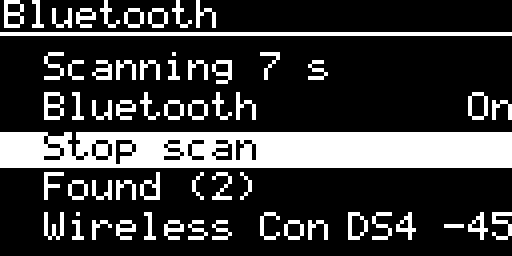
The screenpad does not need the setup menu at all: under Others > Bluetooth you can scan, pair and forget devices while the PS/2 runs a game, or before it has even booted. When a pairing starts from the setup menu, the screenpad opens its own pairing screen by itself, and its blue LED blinks while a scan or a pairing runs and stays on while a device is connected.
Under the hood
There is no extra chip for Bluetooth: the radio is the one of the WiFi module that the WonderMCA already carries. The firmware runs a complete Bluetooth host on the RP2350, next to the work it already does on the bus, and keeps the pairing keys in files on the microSD card.
Keyboards and mice follow the standard. Game pads are another story: each brand has its own habits. A Switch-style controller, for example, wants the host to open its channels straight away without asking it questions first, and only sends its full reports after the start-up commands a Switch console would send. Rather than learn every pad the hard way, the WonderMCA uses the pad drivers of Joypad OS, an open-source (Apache 2.0) project that already knows them. Its drivers are included unchanged, so the pads it learns in the future can come to the WonderMCA with a simple update. The WonderMCA’s own code keeps everything you see: the pairing, the menus, the keyboards and the mice.
Some of those pads pair, then only accept a connection they start themselves. The card tells you so: Paired. Press the Home button on the device to connect it. One press on Home, and the pad is connected a few seconds later.
Good to know: this is a preview. On a real PS/2, a Bluetooth keyboard and a Switch-style pad (Subsonic SA5633) work today; the DualShock 4 and a BLE keyboard pass our tests on the emulated card in 86Box, and the other devices still have to meet real hardware. A known issue we are working on: the Switch-style pad drops its connection after a few seconds. There is no rumble, the mouse has two buttons (no wheel), and Bluetooth audio is not supported. Bluetooth needs the network type WiFi or Radio only, not Ethernet. Under OS/2 and Windows it is not verified yet. Tell us what works with your devices.
What you need
- The WonderMCA firmware with Bluetooth, and the option ROM that comes with it (08F9 or later). The CPLD does not change.
- The network type WiFi or the new Radio only, which switches the radio on for Bluetooth and starts no network.
- Bluetooth On: on the Bluetooth page of the setup menu, on the screenpad, or with
BT 1inconfig.txt, then switch the PS/2 off and on. - The USB page set as for the same USB device: USB Keyboard for a keyboard; USB Mouse, with USB Mouse (COM2) enabled on the Reference Diskette, for a mouse; USB Host, USB Joystick and Joystick Enable for a game pad.
- A microSD card in the WonderMCA: the pairings are saved on it.
Get started. The full Bluetooth chapter, with every screen, the codes, the files on the microSD card and the troubleshooting table, joins the WonderMCA documentation soon.