
WonderMCA · User documentation
Bluetooth keyboards, mice, game pads and headphones on the PS/2, Classic and Bluetooth Low Energy: what you need, switching Bluetooth on, pairing from the setup menu or the screenpad, the codes a keyboard asks for, reconnecting, forgetting a device, the files on the microSD card, the limits and the problems.
← WonderMCA documentation home · Page 19
The card can be a Bluetooth host. It pairs Bluetooth keyboards, mice and game pads, both Classic Bluetooth and Bluetooth Low Energy (BLE), through the radio of its WiFi module. The PS/2 then sees them as it sees the USB devices (USB devices):
| Device | What the PS/2 sees |
|---|---|
| Keyboard | Its own keyboard: the card sends the keys to the keyboard controller of the PS/2 |
| Mouse | A serial mouse at COM2 (2F8h, interrupt 3), Microsoft protocol |
| Game pad | A PC joystick on the game port at 201h |
| Headphones, speaker | Nothing: the card plays its own sound in them instead of the jack (below) |
You pair a device once, from the setup menu or from the screenpad. The card keeps the pairing on the microSD card, and the device comes back by itself after a restart of the PS/2 or a power cycle.
Note. Bluetooth is new. Switch Pro-style pads work on the card; other devices are less tried. Report what works and what does not (troubleshooting).
What you need
| You need | Why |
|---|---|
| The 16-bit firmware | The 16-bit build on the firmware page (0900_002 and later) has Bluetooth; the 8-bit build has none. With Bluetooth, the setup menu has an eighth title, Bluetooth, after USB, and the screenpad has a Bluetooth row under Others. Without it, neither is there and the BT line of config.txt is ignored. See firmware and CPLD update |
| Option ROM 08F9 or later | It comes with the firmware. With 08F9, Esc cancels a pairing; with an older option ROM, Esc leaves the setup menu and only C cancels |
| Network type WiFi or Radio only | Bluetooth uses the radio of the WiFi module. With None, Ethernet or USB Eth the radio stays off. Radio only switches the radio on for Bluetooth and starts no network (below) |
| Bluetooth On | In the setup menu, on the screenpad or with BT 1 in config.txt, then a power cycle (below) |
| The USB page set as for a USB device | A Bluetooth device uses the same path as the USB device of the same kind: USB Keyboard On for a keyboard; USB Mouse On and USB Mouse (COM2) Enabled on the Reference Diskette for a mouse; USB Host and USB Joystick On and Joystick Enable on the Reference Diskette for a game pad (USB devices) |
| The microSD card | The pairings are kept in files on it (below). Without a card, a pairing is lost at the next power-on |
The CPLD does not change for Bluetooth.
What is supported
| Kind | Link | How it pairs | Shown as |
|---|---|---|---|
| Keyboards | Classic and BLE | Most ask you to type a six-digit code on the keyboard. An older keyboard asks for a four-digit PIN. Some BLE keyboards show a number and ask you to confirm it | KBD |
| Mice | Classic and BLE | No code | MOUSE |
| Game pads | Classic and BLE | No code | see the table below |
| Headphones, speakers | Classic | No code, or a number to confirm | AUDIO |
Whatever the device, when the screen asks for a code or a number, answer as for a keyboard. The game pads the card knows by name, and how to put each one in pairing mode:
| Pad | Shown as | Pairing mode |
|---|---|---|
| Sony DualShock 4 | DS4 | Hold Share and PS until the light bar flashes quickly |
| Sony DualSense | DS5 | Hold Create and PS until the light flashes quickly |
| Nintendo Switch Pro Controller | SWPRO | Hold the small sync button on the top until the lights run |
| 8BitDo pads | 8BIT | The pairing combination of the pad’s mode: see its manual |
| Xbox Wireless Controller | XBOX | Hold the pair button on the top until the Xbox button flashes quickly |
| Other Bluetooth game pads | PAD | See the manual of the pad |
The setup menu writes the kind in upper case (DS4, SWPRO, KBD, AUDIO). The screenpad writes the short form (DS4, SwPro, 8Bit, Xbox, pad, kbd, mouse, audio). A BLE device has the mark LE next to it.
At most four devices are connected at once, among them two game pads (the two players of the game port; a USB pad counts as one of them) and one pair of headphones. The card remembers eight paired devices. See the limits.
Switching Bluetooth on
Bluetooth is Off until you switch it on. The switch takes effect at the next power-on: switch the PS/2 off and on. A restart with Ctrl-Alt-Del does not power-cycle the card.
From the setup menu
- Press S at the banner. The top line has the title Bluetooth after USB: Main Disk Audio Network USB Bluetooth POS Register Tools.
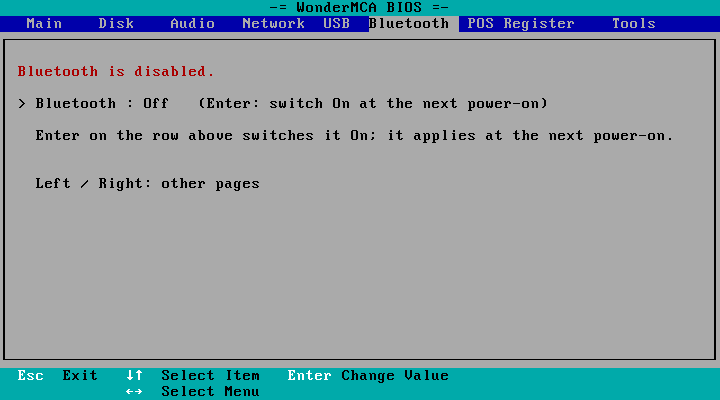
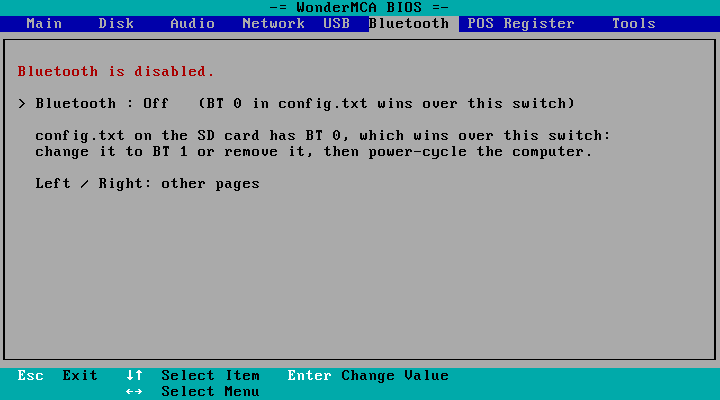
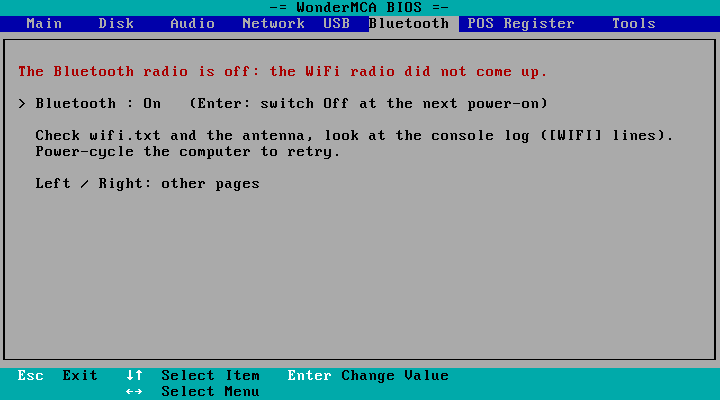
- Press Right five times from Main (or Left three times) to open the Bluetooth page. With Bluetooth off, it shows Bluetooth is disabled. and one row, with the cursor on it:
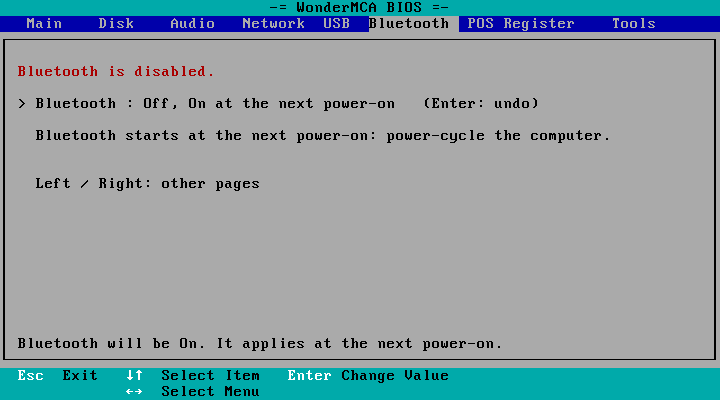
- Press Enter. The row reads Off, On at the next power-on (Enter: undo), and the bottom line Bluetooth will be On. It applies at the next power-on.
- Press Esc to leave the setup menu, then switch the PS/2 off and on.
The same row switches Bluetooth off: Bluetooth : On (Enter: switch Off at the next power-on).
From the screenpad
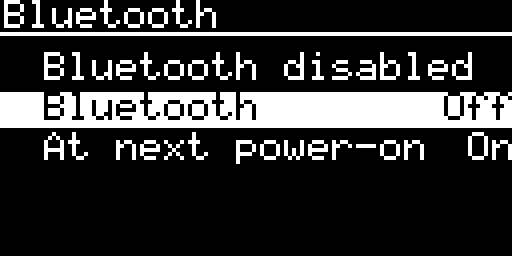
Others > Bluetooth, row Bluetooth: ENTER asks for the other value at the next power-on. The row At next power-on under it shows what the next power-on does (screenpad reference).
With config.txt
| Line | Effect |
|---|---|
BT 1 | Bluetooth on |
BT 0 | Bluetooth off |
no BT line | The switch of the setup menu and the screenpad decides. Without a choice, Bluetooth is off |
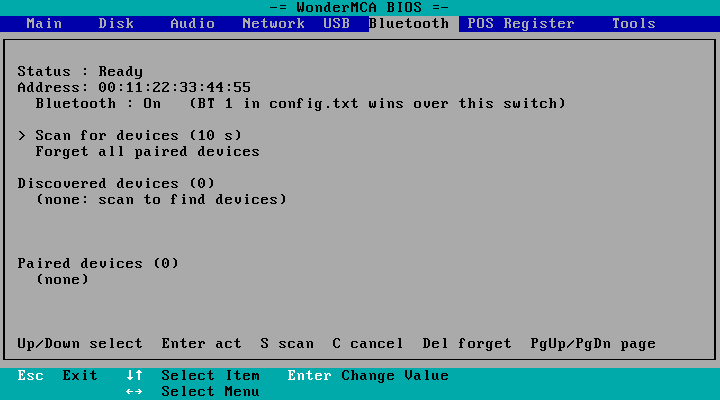
A BT line wins over the switch of the setup menu and of the screenpad. Their row then cannot be changed: the setup menu shows (BT 1 in config.txt wins over this switch), the screenpad Set by config.txt. To use the switch again, remove the line from config.txt.
The card writes the choice of the switch in the file BTSET.TXT on the microSD card (below).
The network type Radio only
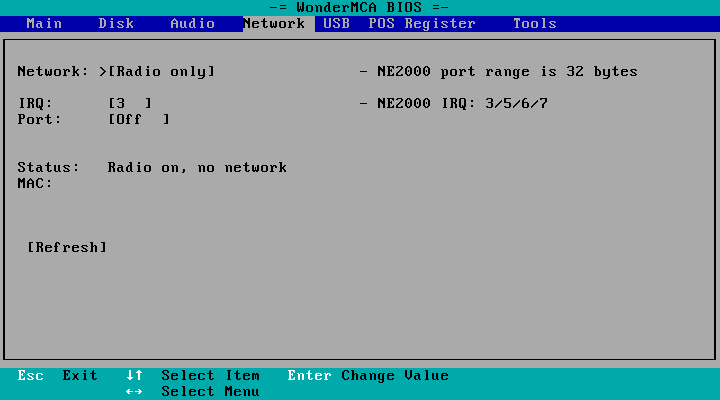
A firmware with Bluetooth offers a fifth network type, Radio only: the radio is on for Bluetooth, but the card does not join a WiFi network, gives the PS/2 no network card (no NE2000) and has no web page. Choose it when you want Bluetooth and no network, or when you have no wifi.txt.
- Setup menu: Network page, Network: row, Radio only. The Status reads Radio on, no network.
- Screenpad: Network page, Type: ENTER goes None, Ethernet, WiFi, Radio only.
- The boot banner shows Network: Radio only.
Like every network type, it takes effect at the next power-on. See Network.
Pairing from the setup menu
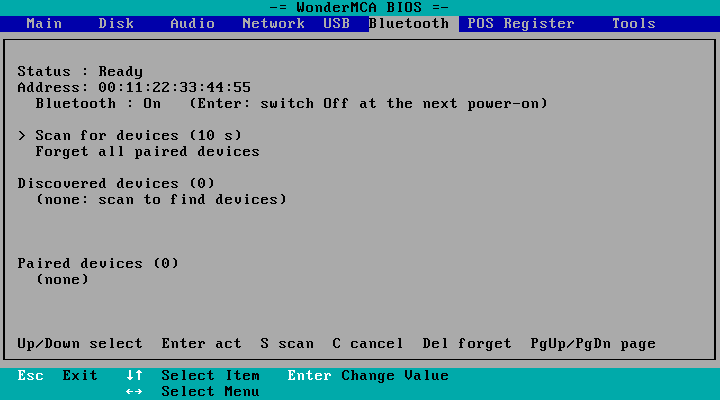
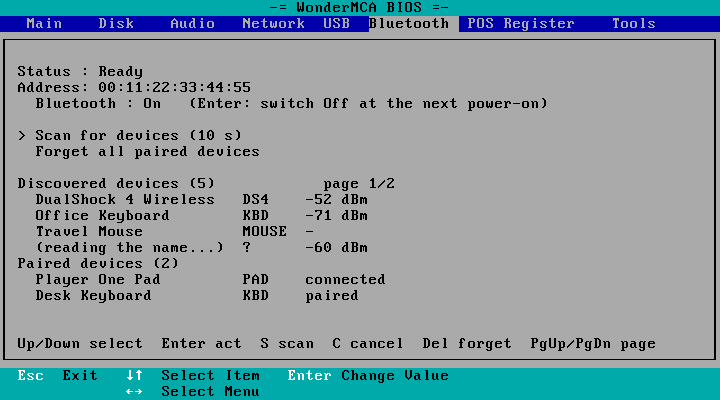
Once Bluetooth runs, the Bluetooth page shows the status, the address of the card, the Bluetooth On/Off row, two actions, the list of the devices found and the list of the paired devices. The bottom line lists the keys: Up/Down select, Enter act, S scan, C cancel, Del forget, PgUp/PgDn page.
- Put the device in pairing mode (What is supported).
- On Scan for devices (10 s), press Enter, or press S anywhere on the page. The status reads Scanning (10 s)… and the devices appear under Discovered devices with their name, their kind and their signal in dBm. The row reads Stop the scan (S or C) while the scan runs.
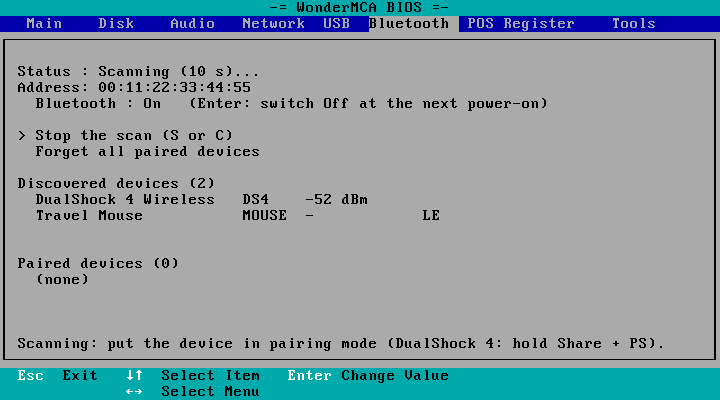
- When the scan ends, the status is Ready again. A name may show (reading the name…) for a moment, or (no name).
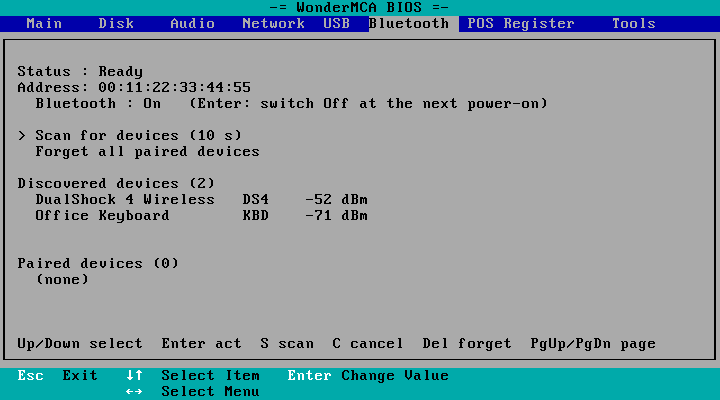
- Move to the device with Down and press Enter. The status reads Pairing… and the bottom line Pairing DualShock 4 Wireless… Esc or C cancels.
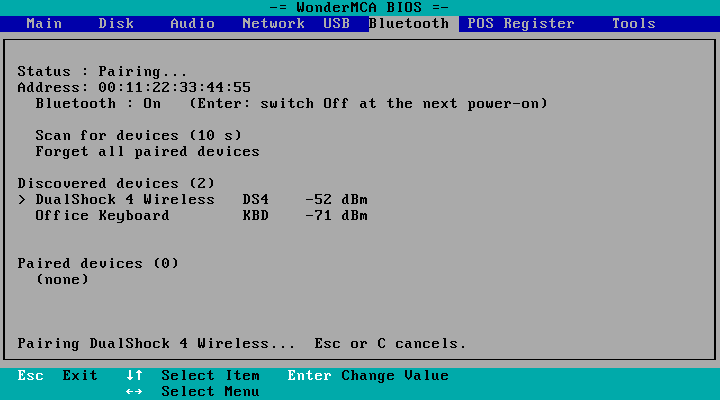
- A pad or a mouse pairs with no code. A keyboard asks for a code: see the next section.
- When the pairing worked, the device moves to Paired devices with connected, the status reads Ready – 1 connected, and the bottom line Paired DualShock 4 Wireless.
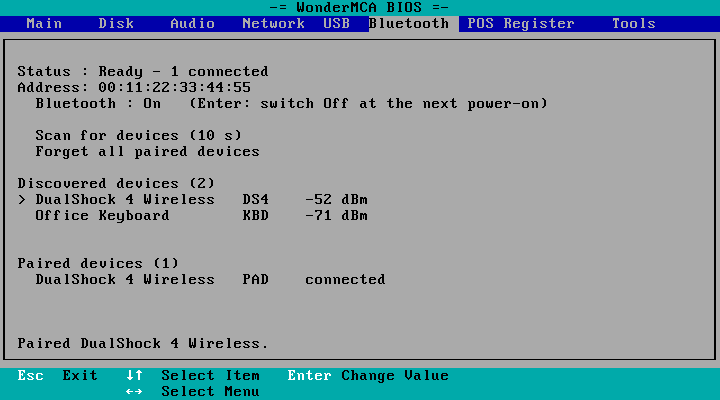
Some pads, Switch-style controllers in particular, pair but then only accept a connection they start themselves. The bottom line then reads Paired. Press the Home button on the device to connect it. (screenpad: Paired: press Home) and the pad is already in Paired devices. Press its Home button: it connects within a few seconds and shows connected.
Leave the setup menu with Esc. The device works from then on (Using the devices).
When a keyboard asks for a code
The code shows on the row under Bluetooth, and the status counts the seconds left. You have 60 seconds.
A six-digit code. Type the six digits on the Bluetooth keyboard, then press its Enter key. The stars in the brackets show how many digits the keyboard has reported. Enter on the PC keyboard does not answer the code: the page then says Type the code on the Bluetooth keyboard itself, then press its Enter key.
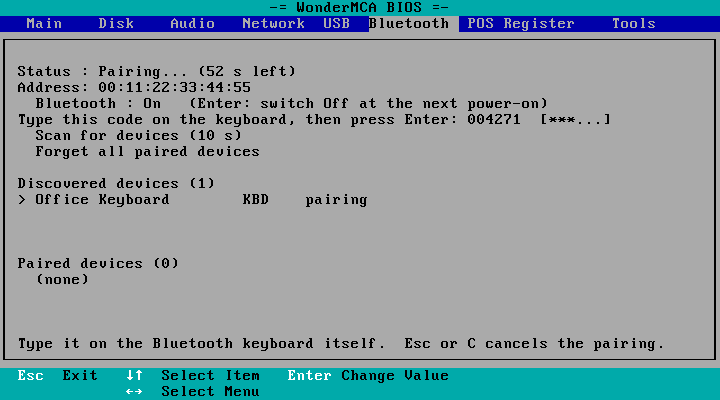
A four-digit PIN (older keyboards). Type the PIN on the Bluetooth keyboard, then its Enter key.
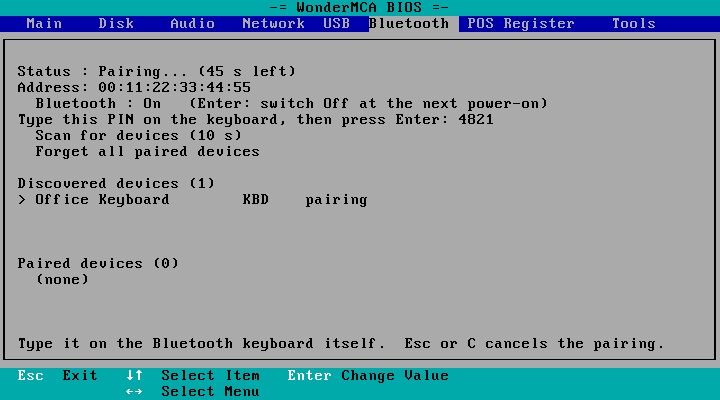
A number to compare (some BLE keyboards). The keyboard shows a number. When it is the same as the one on the screen, press Enter or Y. When it is not, press N, C or Esc.
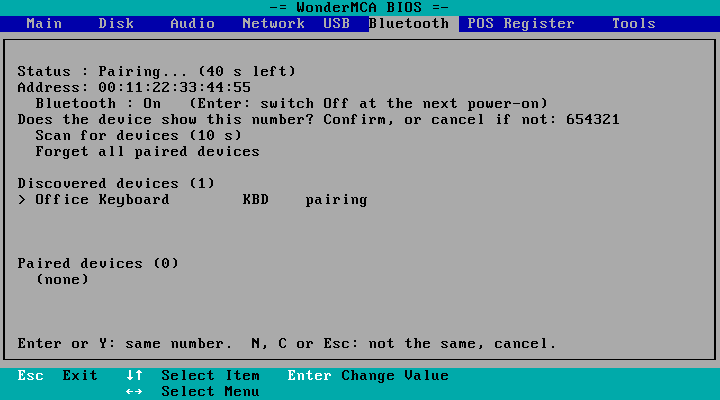
Once the keyboard has sent its Enter, the page shows Checking the code… until the result.
Cancelling a pairing
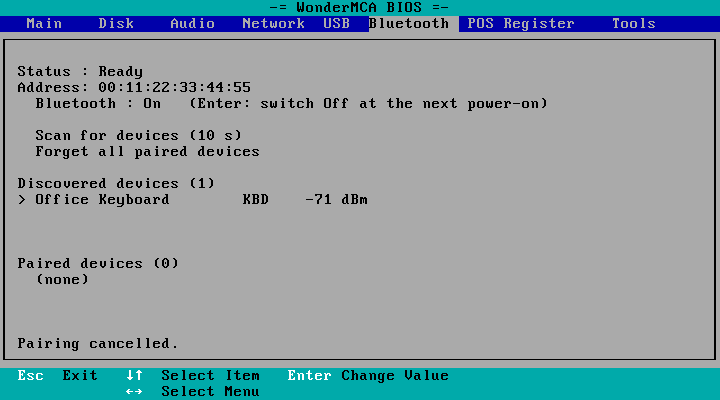
Press C or Esc while the pairing runs. The setup menu stays open and the bottom line reads Pairing cancelled. With an option ROM older than 08F9, Esc leaves the setup menu and the pairing goes on until it times out: use C. When nothing is pairing, Esc leaves the setup menu as on the other pages.
Pairing from the screenpad
The screenpad does not need the setup menu: you can pair a device while the PS/2 runs a program, or before it has booted.
- Put the device in pairing mode.
- On the screenpad, open Others > Bluetooth. The first row shows the status, for example Ready – 0 connected.
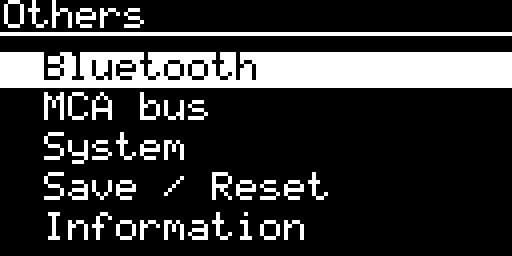
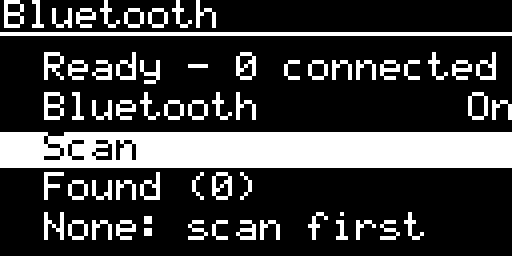
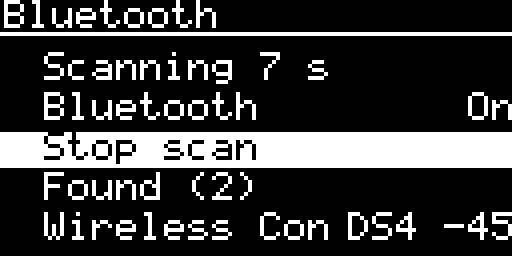
- Select Scan and press ENTER. The status counts the 10 seconds (Scanning 10 s), the row reads Stop scan, and the devices appear under Found with their kind and their signal.
- Move the bar to the device. The title line says ENT pair. Press ENTER.
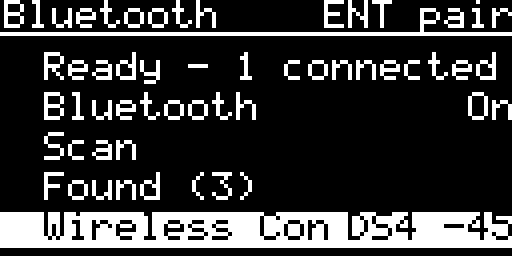
- The pairing screen shows the device and RET cancel. A keyboard shows its code in large digits instead: type it on the Bluetooth keyboard, then its Enter key.
- The title line reads Paired and the name for 4 seconds, then the list comes back.
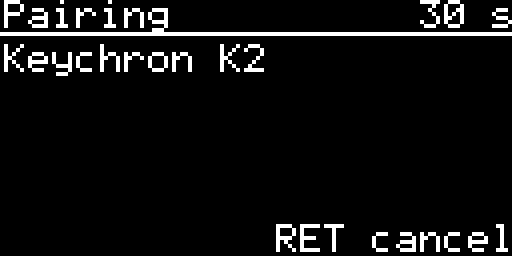
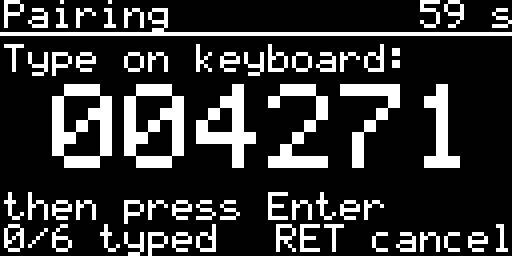
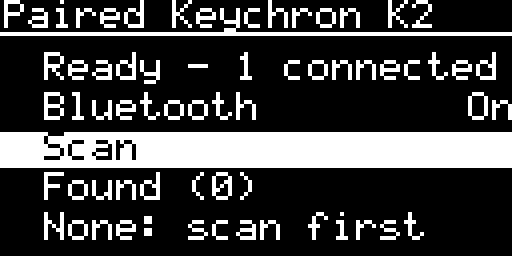
RET on the pairing screen cancels the pairing (and answers “no” to a number to compare). The other pairing screens (PIN, number to compare) are in the screenpad reference.
The pairing screen comes by itself. When a pairing starts while the screenpad shows another page (for example a pairing started from the setup menu), the screenpad opens the pairing screen over that page, lights up if it was asleep, and goes back to that page, as you left it, 4 seconds after the result.
The blue LED blinks while a scan or a pairing runs. Afterwards it gives a short flash, at most twice a second, while a connected keyboard, mouse or pad sends input, and is dark otherwise (firmware 0901 and later; before, it stayed on as long as a device was connected).
Using the devices
- Keyboard. It types like the USB keyboard: national layouts with
KEYB, Ctrl-Alt-Del, the repeat of a held key. It needs USB Keyboard On. A USB keyboard and a Bluetooth keyboard can be used together. - Mouse. It is the serial mouse at COM2, with the same drivers and the same rules as the USB mouse (USB devices): USB Mouse On, USB Mouse (COM2) Enabled on the Reference Diskette, the serial port 2 of the system board off. The left and right buttons and the movement reach the PS/2; the middle button, the side buttons and the wheel do not.
- Game pad. It is a joystick on the game port (sound and game port): Joystick Enable on the Reference Diskette, USB Host and USB Joystick On. Two pads give two players; a USB pad and a Bluetooth pad also give two players.
JOYTESTon the tools floppy shows the sticks and the buttons.
Bluetooth headphones
The card can play its sound on Bluetooth headphones or a Bluetooth speaker instead of the 3.5 mm jack.
- Pair the headphones on this page like any device: they show as AUDIO in the setup menu, audio on the screenpad.
- On the Audio page of the setup menu, set Output to BT (Enter goes through Off, Jack, BT), then Esc to save. On the screenpad: Sound page, Output. In
config.txt:AUDIO_OUT BT.
The sound moves to the headphones at once, and the jack is silent. Output back on Jack gives the jack again. The Audio page shows the headphones to the right of Output: > Bluetooth: with the name and playing, connected or connecting, or > headset not connected, > headset out of range, > no headset paired. All the details are on Sound and game port.
- At a power-on, and when you set Output to BT, the card connects to the paired headphones by itself; headphones that connect by themselves are accepted too. If they do not answer, the card tries again every 10 seconds while Output is BT.
- One pair of headphones is kept: pairing others forgets the first ones. Forget works as for any device.
- Setting Output to BT makes the headphones say “Wonder Bluetooth” after about 3 seconds.
- On BT the screenpad’s Volume is the Bluetooth volume, 70 % at every start (Sound and game port).
- The headphones work together with the game pads, keyboards and mice.
- The sound reaches the headphones a little later than the jack, by an amount that depends on the headphones.
- Only in the 16-bit firmware with Bluetooth.
After a restart or a power cycle
The paired devices come back by themselves after a restart of the PS/2 and after a power cycle, once Bluetooth has started: switch the device on (on a Sony pad, press PS; on a Switch-style pad, Home).
You can also connect a paired device from the list: in the setup menu, select it under Paired devices and press Enter (Connecting…, with the seconds left; Esc or C cancels). On the screenpad, press ENTER briefly on it.
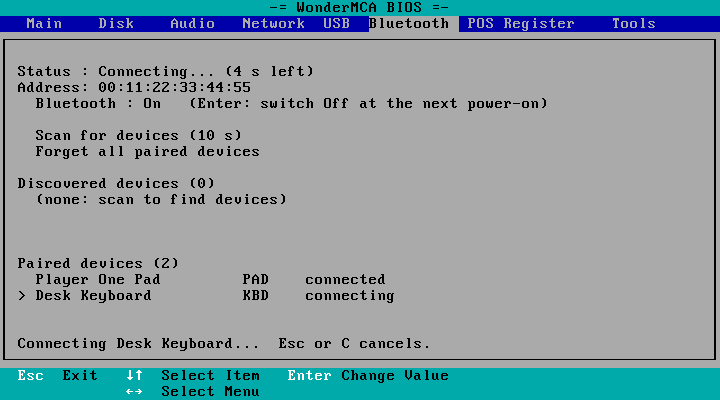
The Paired devices list shows the state of each device: connected, paired (known, not connected), connecting, or out of range (the device did not answer).
Forgetting a device
- One device, setup menu. Select it under Paired devices and press Del or F. The bottom line reads Forgot and its name.
- One device, screenpad. Hold ENTER for one second on it (the title line says HOLD forget). The screen asks Forget device?: ENTER forgets it, RET keeps it.
- All devices, setup menu. On Forget all paired devices, press Enter. The bottom line asks Forget ALL paired devices? Enter again to confirm, any other key cancels. Press Enter again.
- All devices, screenpad. Forget all, then ENTER to confirm or RET to keep them.
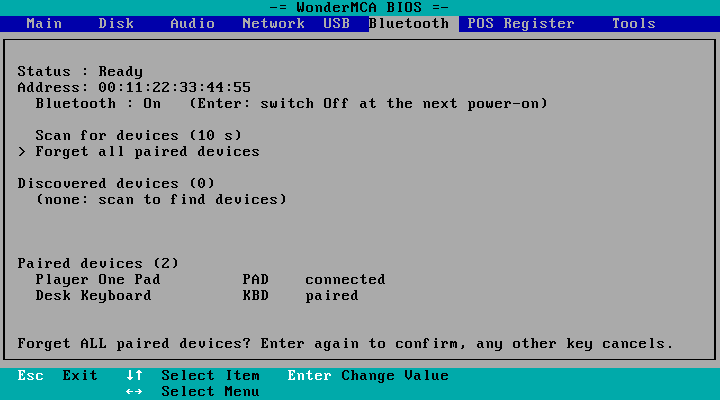
A forgotten device is no longer accepted when it tries to connect. To use it again, pair it again. Forget a device from the setup menu or the screenpad rather than by editing the files of the microSD card.
The setup page in detail
| Row | What it shows or does |
|---|---|
| Status : | Off (the stack is not running), Starting (loading the Bluetooth firmware), Ready, Ready – n connected, Scanning (10 s)…, Scanning: reading the names…, Pairing…, Connecting…. During a pairing or a connect, the seconds left follow, such as (52 s left) |
| Address: | The Bluetooth address of the card |
| Bluetooth : | On or Off for this power-on, and what Enter does (Switching Bluetooth on) |
| The code row | Only during a pairing that asks for a code |
| Scan for devices (10 s) | Enter starts a 10-second scan. It reads Stop the scan (S or C) while a scan runs |
| Forget all paired devices | Enter asks first, a second Enter forgets them all |
| Discovered devices (n) | The devices of the last scan: name, kind, signal in dBm (– when not known), LE for BLE. Enter pairs the selected one. Four rows per page: page 1/2 shows when there are more |
| Paired devices (n) | Name, kind, state. Enter connects the selected one, Del or F forgets it |
| The bottom line | What happens, the result of the last action, or a short list of the keys. An error is in red |
| Key | What it does |
|---|---|
| Up, Down | Move the cursor. It wraps around |
| Home, End | First and last row |
| PgUp, PgDn | Page the list the cursor is in |
| Enter | Act on the row; yes to a number to compare |
| S | Start or stop a scan |
| C | Cancel a pairing, a connect or a scan |
| Y, N | Yes or no to a number to compare |
| Del or F | Forget the selected paired device |
| Left, Right | The other pages of the setup menu |
| Esc | Cancel a pairing or a connect that runs (option ROM 08F9 and later); otherwise leave the setup menu |
The page follows the card by itself: a device found, a pairing that ends or a pad that connects shows without a key press.
The files on the microSD card
The card writes three files in the root of the microSD card:
| File | What it holds | Can you edit it? |
|---|---|---|
BTBOND.BIN | The pairing keys of the paired devices | No. If it is damaged, the card ignores it and starts with no pairing: pair the devices again |
BTDEV.TXT | The paired devices, one per line: address, name, kind (pad, mouse, kbd, audio or any) | You can read it. Deleting a line makes the card refuse that device, but prefer Del in the setup menu |
BTSET.TXT | The Bluetooth On/Off switch of the setup menu and the screenpad: BLUETOOTH ON or BLUETOOTH OFF | No: use the switch, or a BT line in config.txt. A file that the card cannot read counts as Off |
A line of BTDEV.TXT looks like this (the address and the name are examples):
AA:BB:CC:00:00:01 Wireless Controller padKeep the three files when you copy the microSD card to another one.
Limits
- At most four devices connected at once, two of them game pads and one of them headphones. A third pad is refused: Refused: two pads are connected already.
- Eight paired devices remembered, eight devices kept from one scan.
- No rumble. The card sends nothing to a BLE device: no rumble, no light.
- The mouse is a two-button serial mouse: no middle button, no side buttons, no wheel.
- One pair of Bluetooth headphones or one speaker at a time; no microphone, and the play, pause and track keys of the headphones are not used. The sound reaches them a little later than the jack.
- Bluetooth needs the network type WiFi or Radio only. It does not run with Ethernet or USB Ethernet.
- Switching Bluetooth on or off, and changing the network type, take effect at the next power-on.
- A device that shows a code and wants it typed on the computer is not supported: Not supported: the device wants a code typed on the card.
- Of a BLE device, only its first input function is read.
- A BLE device that was paired again with another computer no longer connects, and nothing is shown: forget it and pair it again.
- If
BTBOND.BINis lost, the BLE devices lose their LE mark in the list: forget them and pair them again. - Forget all does not forget a BLE device whose line you deleted by hand from
BTDEV.TXT: forget devices from the setup menu or the screenpad. - Under OS/2 and Windows, the Bluetooth devices are not verified.
Problems
| What you see | What to do |
|---|---|
| The setup menu has no Bluetooth title, the screenpad no Bluetooth row | The firmware has no Bluetooth (the 8-bit build). Install the 16-bit firmware |
| Bluetooth is disabled. | Switch it on with Enter on the row, then power-cycle. If the page says config.txt on the SD card has BT 0, change the line to BT 1 or remove it |
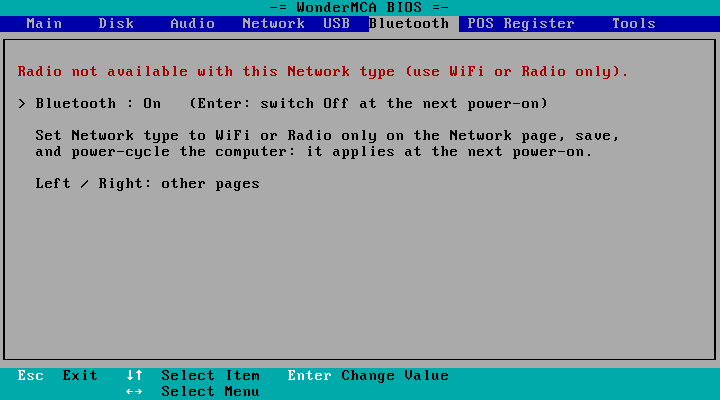
| Radio not available with this Network type (use WiFi or Radio only). | Set the network type to WiFi or Radio only on the Network page, leave the setup menu, power-cycle |
| The Bluetooth radio is off: the WiFi radio did not come up. | Check wifi.txt (with WiFi) and the antenna, then power-cycle. With Radio only, power-cycle |
| The Bluetooth stack did not start. | Power-cycle. If it stays, collect a log (below) |
| (the change could not be saved: check the SD card) on the Bluetooth row, Could not save on the screenpad | The microSD card is missing or write-protected |
| The device does not appear in Discovered devices | Put it in pairing mode again, closer to the PS/2, and scan again |
| Not found: the device is switched off or out of range. | Switch the device on, bring it closer, try again |
| Timed out: the code was not typed on the keyboard in time. | Pair again and type the code within 60 seconds, on the Bluetooth keyboard, then its Enter key |
| Timed out: the PIN was not typed on the keyboard in time., Timed out: the number was not confirmed in time. | The same, for a PIN or a number to compare |
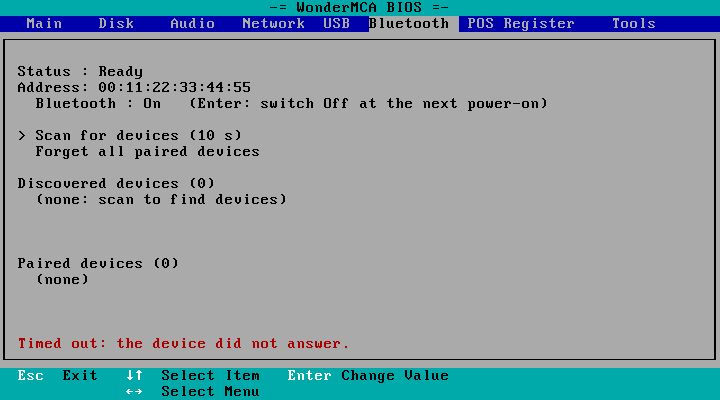
| Timed out: the device did not answer. | Put the device in pairing mode again and retry |
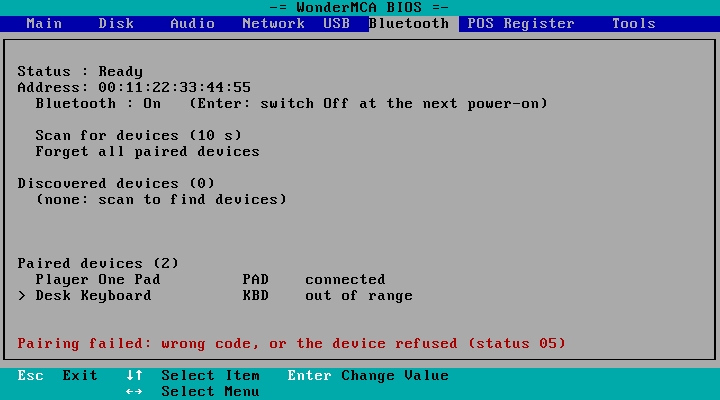
| Pairing failed: wrong code, or the device refused | Pair again and type the code carefully, on the Bluetooth keyboard |
| Refused: two pads are connected already. | Switch one pad off, or unplug the USB pad |
| Refused: no free connection. | Four devices are connected: switch one off |
| Refused: the stack is busy or not ready., Busy: the previous request is still being served, try again. | Wait a second and try again |
| A paired device does not come back after a power cycle | Press a key or a button of the device (PS on a Sony pad, Home on a Switch-style pad). Or select it under Paired devices and press Enter. If it shows out of range, bring it closer. If it still does not connect, forget it and pair it again |
| The Bluetooth keyboard types nothing | USB Keyboard On on the USB page, and no USB_KEYBOARD 0 in config.txt |
| The Bluetooth mouse does not move | As for the USB mouse: troubleshooting |
| The Bluetooth pad does nothing | Joystick Enable, USB Host and USB Joystick, as for the USB pad (sound and game port) |
| No sound in the Bluetooth headphones | Output on the Audio page must read BT, and the text to its right playing. > no headset paired: pair them. > headset not connected or out of range: switch them on, bring them closer; the card tries again every 10 seconds. A line AUDIO_OUT JACK or AUDIO_OUT OFF in config.txt wins over the setting |
| Output offers no BT | The firmware has no Bluetooth audio. Install the 16-bit firmware with Bluetooth |
The console
The console (troubleshooting) prints the Bluetooth lines with the tag [BT]. A good start reads:
[DSK][CFG] BT 1
[BT] starting BTstack (BT firmware download)
[BT] BTstack up, BD_ADDR AA:BB:CC:DD:EE:FF
Without a radio it reads [BT] off: Bluetooth needs NetType = WiFi or Radio only (the RM2 is not powered otherwise). During a pairing it prints the code ([BT] passkey ... type it on the keyboard, then Enter) and the result. Send these lines with your report.
← Previous
Related →
WonderMCA user documentation · Documentation home