
WonderMCA · User documentation
Play the MP3 files of the microSD card or of the USB stick on your PS/2: WMPLAY, the full-screen player with its spectrum display, and the wmctrl mp3 commands for the DOS prompt and batch files.
← WonderMCA documentation home · Page 20
On this page — 5 sections
The card plays the MP3 files of its microSD card or of its USB stick by itself. The PS/2 only gives the orders: play, pause, next. It does not read the file and it does not decode it, so the processor of the PS/2 does not matter, and a game or a DOS program keeps running while the music plays.
The music comes out where the other sounds of the card come out: the jack and the Micro Channel audio line, or the Bluetooth headphones (The audio output). It is mixed with the Sound Blaster, the AdLib and the CD audio.
There are three ways to use it:
| Program | What it is for |
|---|---|
WMPLAY | A full-screen player: you browse the folders of the card, play, pause, skip, and watch the spectrum |
WMCTRL MP3 | One command per action, for the DOS prompt and for batch files |
| The screenpad | Audio > MP3 player on the card’s own display: the folders of the microSD card, play, pause, stop, next, the knob for the volume. No PC program needed (Screenpad reference) |
The three drive the same player: a file started from one shows on the others.
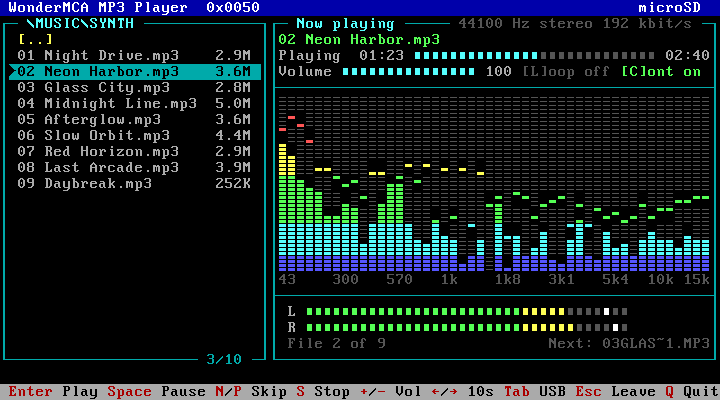
What you need
| You need | Why |
|---|---|
| A firmware with the MP3 player | The MP3 player comes with the firmware. With an older firmware, both programs answer that the firmware has no MP3 player: update the firmware (Firmware and CPLD update) |
| The audio output not Off | Output on the Audio page of the setup menu must be On (in a firmware with Bluetooth: Jack or BT). With Off the card plays nothing and says so (The audio output) |
WMPLAY.EXE and WMCTRL.EXE | They are on the tools floppy image wmtools.img. Mount that image as a floppy and copy them to your hard disk (Usage guide) |
| MP3 files on the card | On the microSD card or on the USB stick, in any folder |
The CPLD does not change for the MP3 player.
Putting music on the card
- Switch the PS/2 off and take the microSD card out of the WonderMCA.
- Put the microSD card in your computer.
- Create a folder for the music, for example
MUSIC, next toFLOPPY,HDDandCDROM. - Copy your
.mp3files into it. Make one sub-folder per album if you like. - Put the microSD card back and switch the PS/2 on.
A USB stick works the same way: copy the files to it and plug it into the USB-A port of the card.
| Rule | Value |
|---|---|
| Files | MP3 files, with the extension .mp3. Any bit rate, constant or variable, mono or stereo, 8 to 48 kHz |
| Names | Long names and spaces are allowed. The list of WMPLAY shows the first 20 characters of a name |
| Folders | As deep as you like, up to 100 characters for the whole path of a folder, counted with the short DOS names |
| Files in one folder | WMPLAY shows the first 256 entries of a folder |
| Play order | By name. Start the names with the track number (01, 02, …) to keep the order of an album |
WMPLAY shows the name of the file. It does not read the title and the artist stored inside the file.
WMPLAY, the full-screen player
Type WMPLAY at the DOS prompt. The player opens on the root of the microSD card.
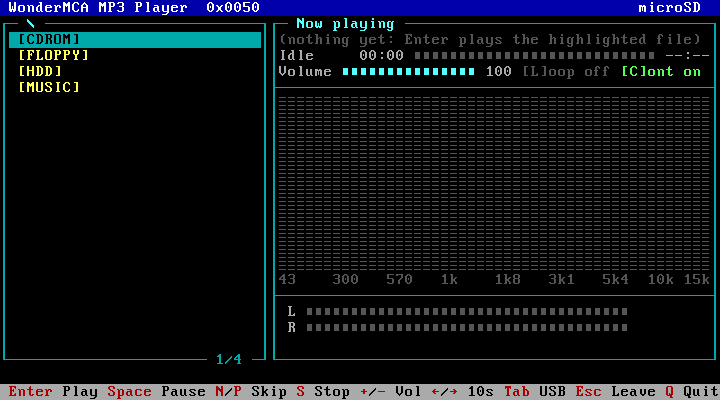
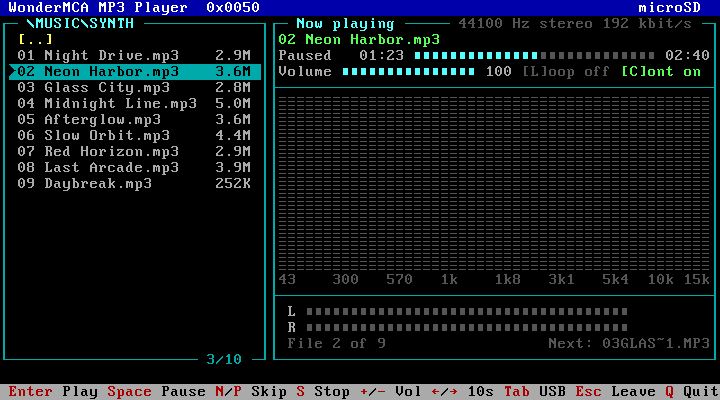
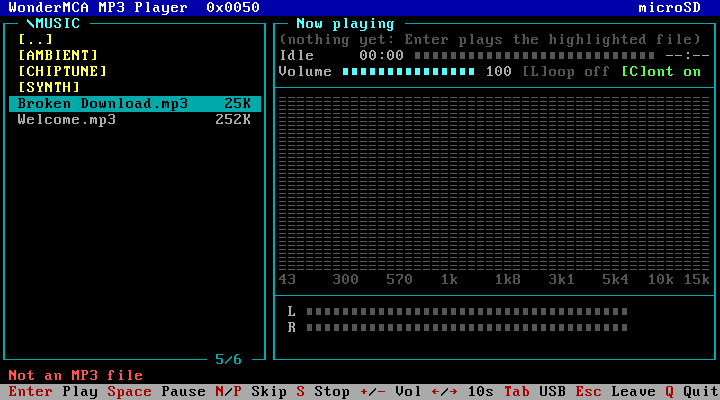
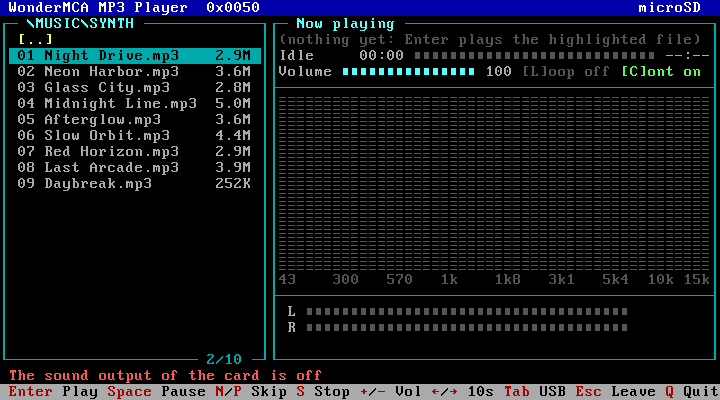
| Part of the screen | What it shows |
|---|---|
| The top line | WonderMCA MP3 Player and, on the right, the volume you browse: microSD or USB |
| The left box | The folder: its path in the frame, sub-folders in brackets, then the MP3 files with their size. Under it, the position of the bar and the number of rows, such as 3/10 |
| The right box, Now playing | The file that plays, its state and time, the volume, the spectrum and the level meters |
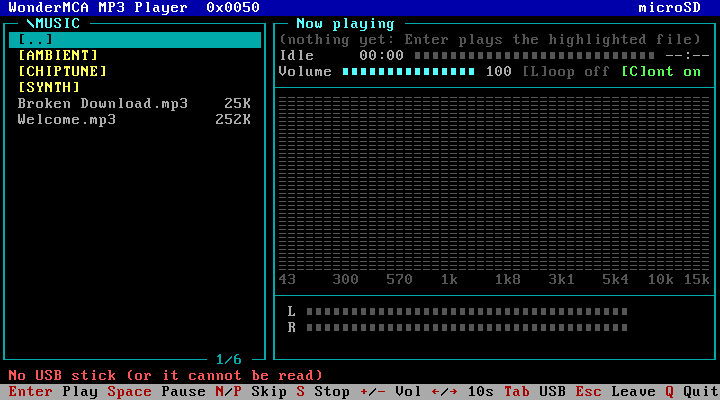
| The line under the boxes | A message when something cannot be done. It stays about 4 seconds |
| The bottom line | The main keys |
Browsing
Move the bar with Up and Down. Press Enter on a folder to open it, and Backspace to go back to the folder above. The row [..] at the top of a folder does the same as Backspace.
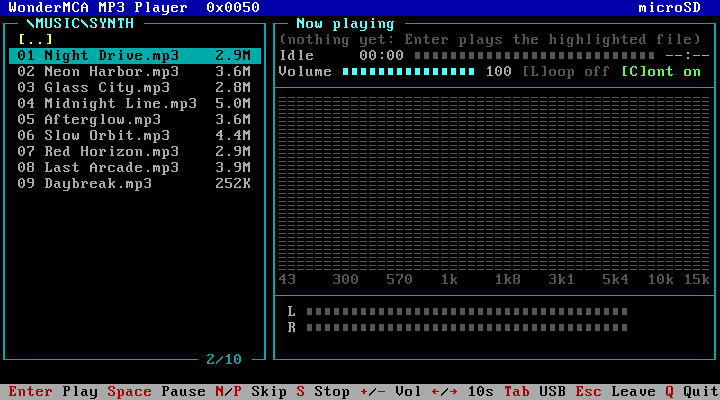
- Only folders and MP3 files are listed: folders first, then the files, each group by name.
- The size is in KB (252K) or in MB (3.6M).
- A name longer than its row scrolls while the bar is on it: it stays still a second, moves to its end, stays a second, and starts again. The other rows show the start of their name.
- In a folder with more rows than the box can show, the list scrolls with the bar. PgUp, PgDn, Home and End move faster.
- A + after the counter, such as 256/256+, means that the folder has more than 256 entries: the rest is not shown.
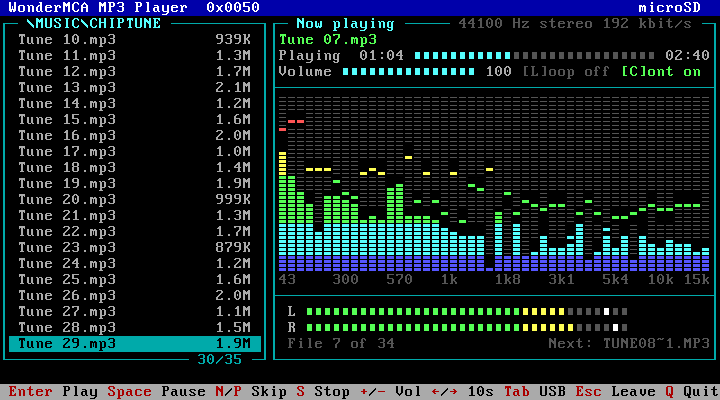
Playing
Press Enter on a file. The file starts, and the MP3 files of that folder become the play list.
| On the screen | Meaning |
|---|---|
| 02 Neon Harbor.mp3 | The name of the file that plays. In the list on the left it has a small arrow in front |
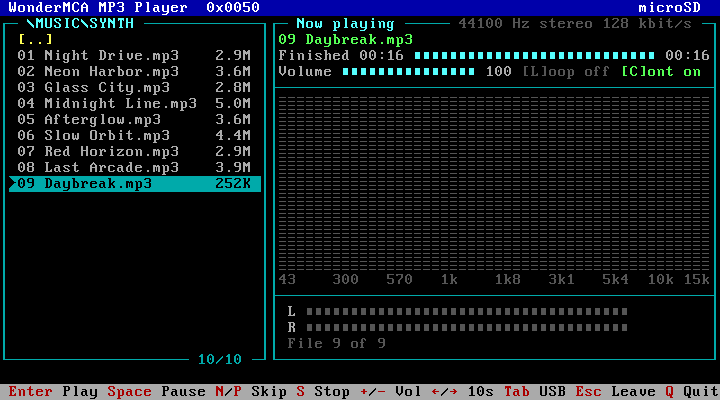
| Playing 01:23, the bar, 02:40 | The state, the time played, the song as a bar that fills while it plays, and its length, in minutes and seconds. The states are Idle, Playing, Paused, Stopped, Finished and Error. --:-- when the length is not known. Left and Right jump 10 seconds |
| 44100 Hz stereo 192 kbit/s, on the frame of the box | What the file is. With a variable bit rate file the last number moves |
| Volume, the bar and the number | The volume of the MP3, 0 to 100 |
| [L]oop off, [C]ont on | The two play modes and the keys that change them |
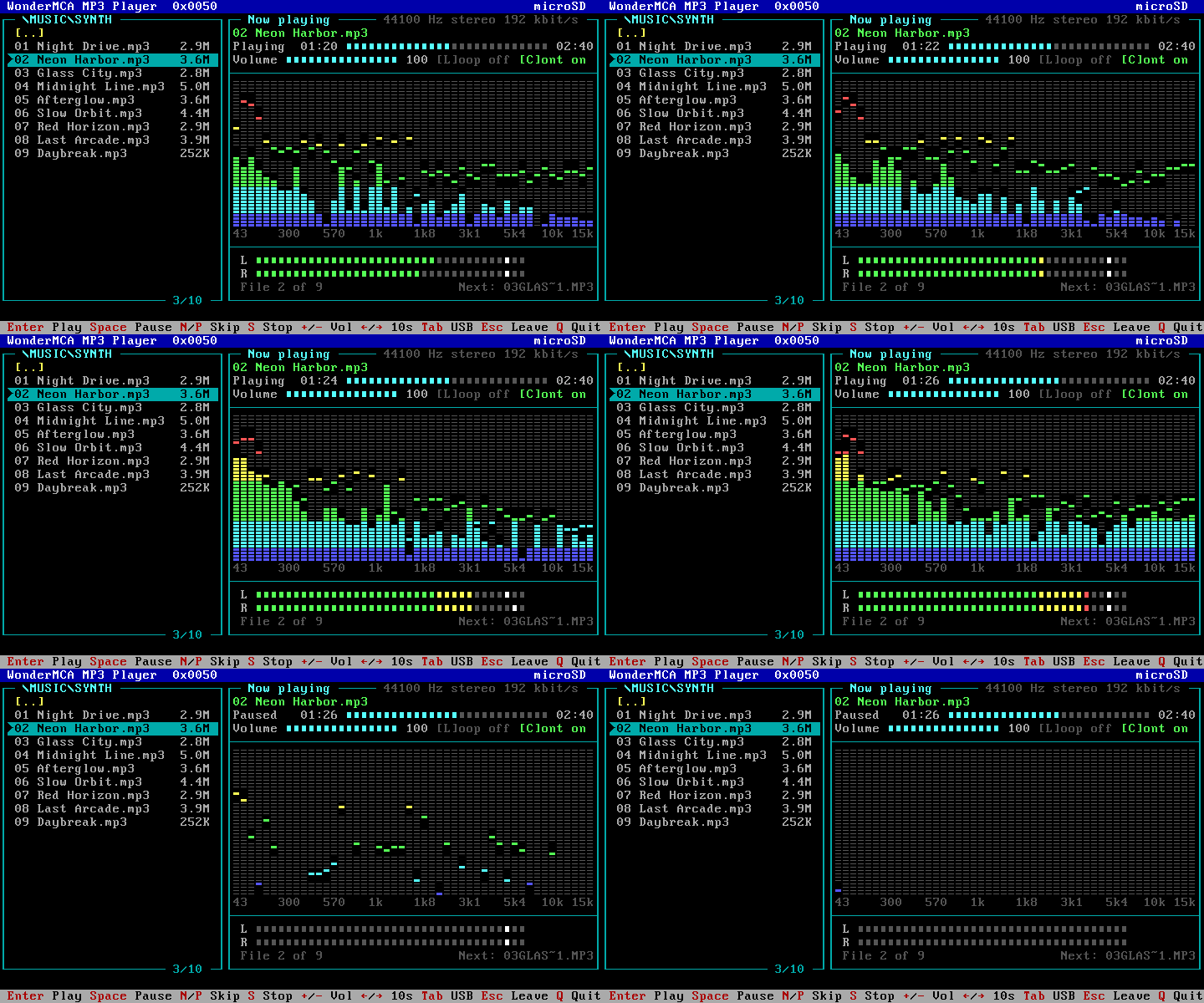
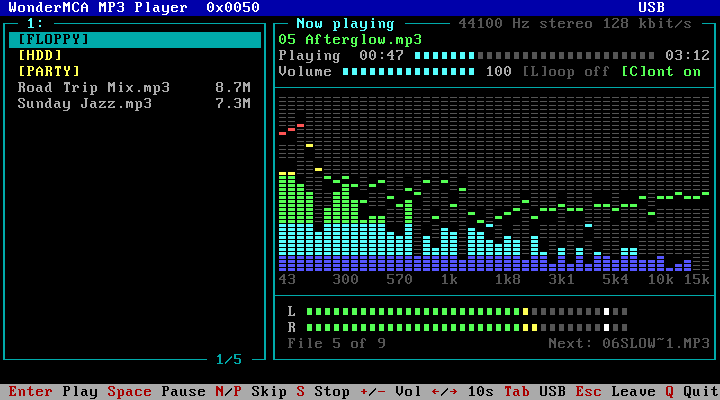
| The spectrum | The music in 48 bands, from the bass on the left (43 Hz) to the treble on the right (15 kHz), like the display of a hi-fi set. A band is a column of 44 small segments: blue at the bottom, then cyan, green, yellow, red, and magenta at the very top. The segment that stays alone above a band is its last peak: it stays 2 seconds, then comes down |
| L and R | The level of the left and of the right channel. The end of the scale is yellow, then red. The white square is the last peak: it stays 2 seconds, then comes down |
| File 2 of 9 | The place of the file in the play list |
| Next: 03GLAS~1.MP3 | The file that starts when this one ends, by its short DOS name. A file whose name has accented letters or typographic signs, and every file of an exFAT card, has no usable short name: the card then makes one from the first letters of the name and a number, such as GLASSC?3.MP3 |
The screen follows the music about 18 times a second.
The keys
| Key | What it does |
|---|---|
| Up, Down, PgUp, PgDn, Home, End | Move the bar in the list |
| Enter | Open the folder, or play the file. The files of that folder become the play list |
| Backspace | Back to the folder above |
| Tab | Switch between the microSD card and the USB stick |
| Space | Pause, resume |
| N, P | The next, the previous file of the play list |
| S | Stop |
| +, – | The volume of the MP3, in steps of 5 |
| Right, Left | 10 seconds on, 10 seconds back in the song, also while it is paused. Never past its last second, never before its start |
| L | Loop the file: on, off |
| C | Continuous play: on, off |
| Esc | Leave WMPLAY. The music goes on |
| Q | Stop the music and leave WMPLAY |
WMPLAY /? prints the keys and the version of WMPLAY, which is also on the top line (0x0050).
Pause and stop
Space pauses the music and Space again resumes it at the same place. S stops it: the next Enter starts a file from its beginning.
The spectrum does not go dark at once: the bands fall, and their peaks stay 2 seconds before they come down.
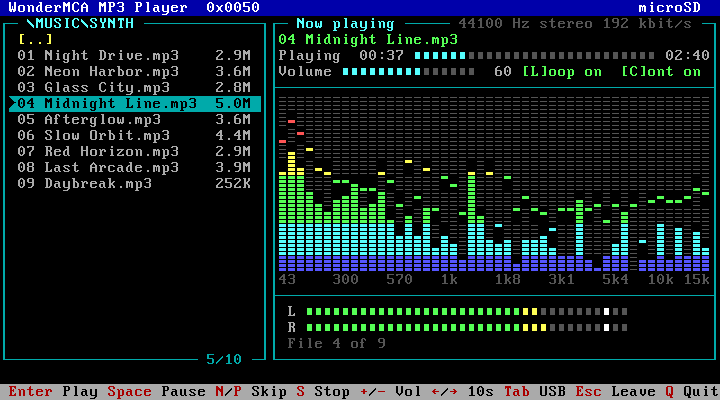
Volume, loop and continuous play
- + and – change the volume of the MP3 only, in steps of 5. The Volume and Mute of the screenpad act on all the sounds of the card, the MP3 included.
- C switches the continuous play. It is on when WMPLAY starts: at the end of a file the next file of the play list starts. With [C]ont off the music stops at the end of the file.
- L switches the loop. With [L]oop on the same file starts again at its end, and no next file is announced.
- You can open another folder while the music plays: the play list stays the one of the folder the music comes from. If the next file starts while you look at another folder, Now playing shows its short DOS name.
At the end of the last file of the play list the state is Finished.
The microSD card and the USB stick
Tab shows the other volume, from its root. The top line reads USB and the path in the frame starts with 1:. The music does not stop when you switch.
Without a USB stick, the list stays where it was and the message line reads No USB stick (or it cannot be read).
Leaving WMPLAY
| Key | The music | Use it to |
|---|---|---|
| Esc | Goes on | Start a game or another program with the music on |
| Q | Stops | End the session |
WMPLAY gives the DOS screen back as it was.
Ctrl-C and Ctrl-Break do nothing in WMPLAY: leave with Esc or Q.
After Esc:
- The file that plays goes to its end, and the music stops there: the continuous play is done by WMPLAY, so no next file starts. With the loop on, the file plays again and again.
WMCTRL MP3 STOPstops the music from the DOS prompt.- Start
WMPLAYagain to take the controls back: it shows the state, the time, the spectrum and the meters of the music. The name of the file is not shown again and the play list is empty, until you press Enter on a file.
A monochrome screen
On a monochrome display adapter WMPLAY uses black-and-white attributes by itself. On a colour adapter with a screen that shows no colours, such as the plasma screen of a portable PS/2, start it with WMPLAY /M.
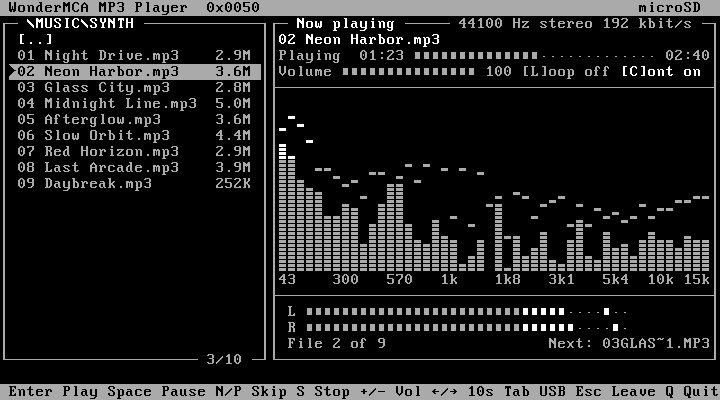
If the spectrum shows line-drawing characters
WMPLAY draws the segments of the spectrum with eleven characters of its own. It loads them into the VGA adapter of the PS/2 when it starts and puts the characters of DOS back when it leaves.
If the spectrum shows double-line box characters instead of segments (this can happen in a DOS window of Windows or OS/2), start WMPLAY with WMPLAY /T. It then uses plain characters only: a band is a column of 11 small squares.
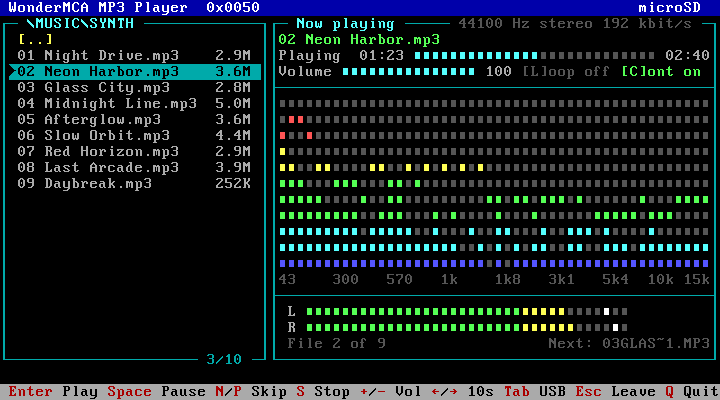
The messages of WMPLAY
| Message | Meaning | What to do |
|---|---|---|
| No USB stick (or it cannot be read) | Tab found no USB volume | Plug the stick and press Tab again (USB devices) |
| Not an MP3 file | The card found no MP3 data at the start of the file | Check the file on your computer |
| Not found on the card | The file is no longer there | Leave the folder and open it again |
| The sound output of the card is off | The audio output is Off | Set Output on the Audio page of the setup menu to On (in a firmware with Bluetooth: Jack or BT) |
| The folder cannot be read | The card could not open the folder | Check the microSD card |
| The folder path is too long | The path of the folder has more than 100 characters | Use shorter folder names or fewer levels |
| Not possible now | The card refused the key in the present state | Nothing |
| The card does not answer | The card did not answer in time | Leave WMPLAY and start it again |
| (no MP3 file here), in the list | The folder has no sub-folder and no MP3 file | Press Backspace |
wmplay: this firmware has no MP3 player, at the DOS prompt | The firmware of the card is older than the player | Update the firmware |
wmplay: WonderMCA not found (is the WMBIOS loaded?), at the DOS prompt | WMPLAY found no card | Check that the option ROM of the card starts at power-on |
WMCTRL MP3, the commands
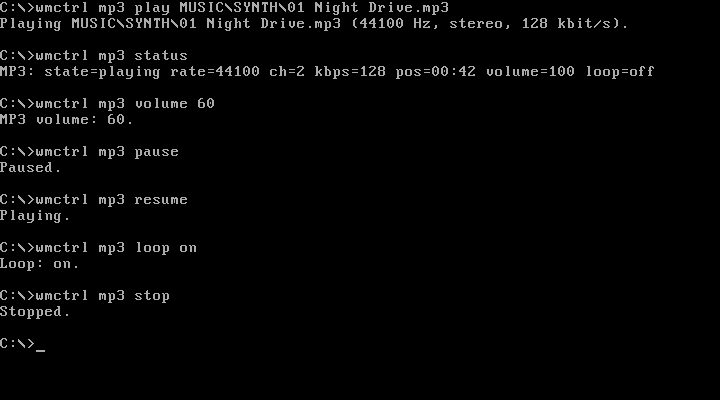
WMCTRL MP3 does one thing per command. Use it at the DOS prompt, or in a batch file to start music before a program and stop it after.
| Command | What it does |
|---|---|
WMCTRL MP3 PLAY <file> | Plays the file. A file that already plays is replaced |
WMCTRL MP3 PLAY <file> /L | Plays the file in a loop |
WMCTRL MP3 STATUS | One line, such as MP3: state=playing rate=44100 ch=2 kbps=128 pos=00:42 volume=100 loop=off |
WMCTRL MP3 PAUSE, RESUME | Pause, resume |
WMCTRL MP3 STOP | Stop |
WMCTRL MP3 VOLUME <N> | The volume of the MP3, 0 to 100 |
WMCTRL MP3 LOOP ON or OFF | Loop the file, or stop at its end |
WMCTRL MP3 DIR [folder] | The folders and MP3 files the card finds in a folder, one per line: the size (or <DIR>), the short name, the name. Without a folder: the root of the microSD card; 1: is the USB stick. WMPLAY shows the same entries: use it when WMPLAY shows a folder empty |
<file>is the path of the file from the root of the microSD card:MUSIC\SYNTH\01 Night Drive.mp3. Start it with1:for the USB stick:1:\PARTY\Dance Floor.mp3.- Long names and spaces are allowed, without quotes. The path has 127 characters at most. Upper and lower case are the same.
- Add
/Qto print nothing when the command works.
In a batch file
@ECHO OFF
WMCTRL MP3 PLAY MUSIC\INTRO.MP3 /L /Q
IF ERRORLEVEL 1 ECHO No music today.
MYGAME
WMCTRL MP3 STOP /Q| Exit code | Meaning |
|---|---|
| 0 | The command worked |
| 1 | The card refused it: file not found, not an MP3 file, the audio output is off, or not possible now |
| 2 | Usage error |
| 5 | No WonderMCA found |
| 6 | The firmware of the card has no MP3 player. Update the firmware |
The answers when a command fails
| Answer | Meaning |
|---|---|
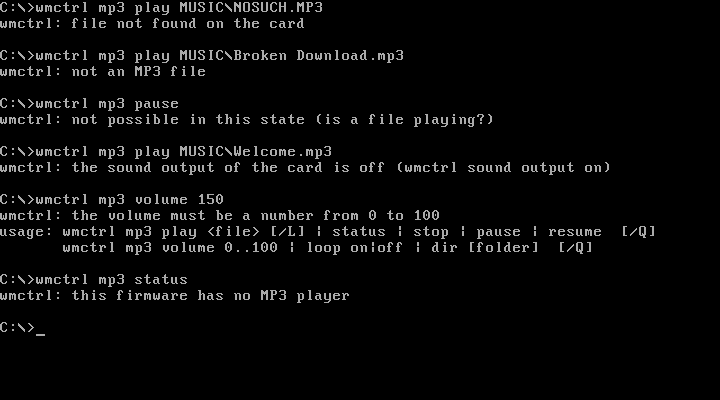
wmctrl: file not found on the card | No such file. Check the path and the name |
wmctrl: not an MP3 file | The card found no MP3 data at the start of the file |
wmctrl: not possible in this state (is a file playing?) | PAUSE without music, RESUME without a pause, STOP with no file |
wmctrl: the sound output of the card is off (wmctrl sound output on) | The audio output is Off. WMCTRL SOUND OUTPUT ON switches it on for the next start of the PS/2 |
wmctrl: the volume must be a number from 0 to 100 | A wrong value, followed by the usage text |
wmctrl: this firmware has no MP3 player | Update the firmware |
Limits
- One file plays at a time.
- The file must be on the microSD card or on the USB stick itself. A file inside a hard disk image is not seen: copy it to the card first, for example with
WMDFS(Usage guide). - A jump with Left or Right lands on a whole second. In a variable bit rate file without a VBR header (most files have one) the length and the jumps are estimates.
- Only MP3 files. Play lists (
.m3u) are not read: the play list is the folder. - There is no random order.
- The continuous play needs WMPLAY on the screen, or a file started from the screenpad (the card then starts the next file of the folder by itself).
WMCTRL MP3 PLAYplays one file, or one file in a loop. - With Bluetooth headphones the sound comes a little later than on the jack (Bluetooth headphones).
- Building the firmware yourself: the CMake option
-DMP3_PLAYER=OFFleaves the MP3 player out (the default is on).
← Previous
Related →
WonderMCA user documentation · Documentation home